TERRAEXPLORER FUSION API · PRACTICAL EXAMPLES
TerraExplorer Fusion Labs
Ongoing development · Web application · Developed with AI assistance
Labs is my customisation project for TerraExplorer Fusion. This article focuses on how its tools use the TerraExplorer API to control navigation, create geographic objects, manage layers and respond to viewer events. External services provide data; the API connects that data and each tool’s controls to the Fusion 3D scene.
How the TerraExplorer Fusion API works
SGWorld is the main entry point to the TerraExplorer API used inside Fusion. Its child interfaces divide the work: Navigate controls the camera, Creator creates scene objects and layers, ProjectTree organises content, Window handles screen and scene interaction, and Analysis provides terrain and visibility operations.
The browser tool makes JavaScript calls against the SGWorld object exposed by the loaded viewer. A response from Google, a city data portal or a tracking backend is handled by the tool first. The tool then creates geographic positions, geometry or labels and passes those objects to TerraExplorer. The API does not fetch those external service responses automatically.
Fusion also exposes browser-specific interfaces for configuring its own UI and custom tool panels. The SGWorld examples below focus on the geographic scene operations used by Labs. The ribbon wrapper and its panel registry are application code around the viewer.
Viewer readiness and tool access
Skyline’s documented wrapper pattern uses onTEFInit to acquire SGWorld from the viewer iframe and onTEFProjectLoaded for work that depends on the loaded project. These are separate lifecycle stages. A tool owned by Fusion can access parent.SGWorld; a wrapper-owned sibling panel needs the wrapper to pass it the viewer reference after the panel loads.
The inspected Labs wrapper loads TE.html in an iframe, polls for SGWorld and shares the reference with its same-origin tool panels. Polling can recover viewer access, but it does not by itself establish that project loading has finished. Tool code also checks the interfaces it needs before making scene calls.
For event-driven tools, AttachEvent connects a named callback to a viewer event and DetachEvent removes the subscription when the interaction ends. Tracking tools keep object identifiers so updates can target existing scene content, and named project-tree groups allow generated content to be cleared.
The examples are condensed, commented adaptations of the Labs integration patterns, checked against the local Fusion JavaScript wrapper and declarations. They illustrate each tool’s viewer workflow, rather than reproducing its complete production UI or service client. The inspected viewer assets identify the 8.5.0.60602 bundle; available methods should be checked against the deployed viewer.
API examples in the Labs tools
Each example shows a workflow: accept data or user input, prepare geographic content, call the viewer API and provide update or cleanup actions where needed. The method heading identifies a particular API operation within that workflow. Supporting panels are identified separately where they make no direct scene API call.
Using the examples
Pass a ready SGWorld reference after the project has loaded. Inputs are documented above each code block. Normalised records are prepared by the tool’s service adapter; they are not the raw provider response format. Call returned cleanup actions when replacing results or closing a panel. These examples run inside the configured Fusion host, not on this article page.
Google integrations · API examples
- Google Maps and Street View
Embeds Google Maps and Street View alongside Fusion. Synchronisation modes connect the map or panorama position and viewing direction with navigation in the 3D scene.
SGWorld.Creator.CreatePositionBuilds a TerraExplorer position with location and orientation values for map and Street View synchronisation. The position object carries the geographic camera target.
Pass the ready viewer and the Google Street View panorama instance. This example shows the Street View-to-Fusion direction of synchronisation; stop it when the tool closes.
function linkStreetView(SGWorld, panorama, altitudeMeters) { function updateCamera() { const location = panorama.getPosition(); if (!location) return; const view = panorama.getPov(); // Google supplies latitude/longitude and the panorama direction. // TerraExplorer positions use X = longitude, Y = latitude. // Altitude type 3 = terrain-absolute; yaw/pitch are degrees. const target = SGWorld.Creator.CreatePosition( location.lng(), location.lat(), altitudeMeters, 3, view.heading, view.pitch, 0, 0 ); SGWorld.Navigate.SetPosition(target); } const locationListener = panorama.addListener( "position_changed", updateCamera ); const directionListener = panorama.addListener( "pov_changed", updateCamera ); updateCamera(); // Return a cleanup function for the panel's close/unload handler. return () => { locationListener.remove(); directionListener.remove(); }; }- Google Places and Routes
Searches for places and plans routes using Google services, connecting results and route geometry with the geographic scene.
SGWorld.Creator.CreatePolylineFromArrayConverts the route coordinates returned by Google into a polyline in the Fusion scene. Service responses supply the route; TerraExplorer draws it geographically.
path is the decoded Google route: an array of LatLng objects. route contains the destination name and duration in seconds, as in the Labs route renderer.
function showRoute(SGWorld, path, route) { if (path.length < 2) throw new Error("A route needs two points."); const group = SGWorld.ProjectTree.FindItem("Google Routes") || SGWorld.ProjectTree.CreateGroup("Google Routes"); // Turn the provider's path into flat X/Y/Z coordinate triples. // Altitude type 0 = terrain-relative: draw 5 m above the terrain. const vertices = path.flatMap(point => [ point.lng(), point.lat(), 5 ]); // Use journey time to communicate short, medium and long routes. const rgb = route.durationSeconds > 1800 ? [255, 0, 0] : route.durationSeconds > 600 ? [255, 165, 0] : [0, 255, 0]; const colour = SGWorld.Creator.CreateColor(...rgb, 255); const line = SGWorld.Creator.CreatePolylineFromArray( vertices, colour, 0, group, "Route to " + route.destination ); line.LineStyle.Width = -5; // Negative width = screen pixels. SGWorld.Navigate.FlyTo(line); // Retain the ID so a later route request can remove this result. return () => SGWorld.ProjectTree.DeleteItem(line.ID); }- Google Weather
Queries current weather for a selected location and presents the conditions in a dedicated panel, with a weather marker in the scene.
SGWorld.Creator.CreateImageLabelPlaces a weather icon at the queried location, linking the conditions panel with a visible marker in the 3D view.
weather is a normalised current-conditions result with longitude, latitude, altitudeMeters, iconUrl and summary. Resolve the icon to a browser-accessible URL before calling this renderer.
function showWeather(SGWorld, weather) { const group = SGWorld.ProjectTree.CreateGroup("Weather result"); const position = SGWorld.Creator.CreatePosition( weather.longitude, weather.latitude, weather.altitudeMeters, 3 ); const style = SGWorld.Creator.CreateLabelStyle(); // The HTTP weather response is already parsed by the tool. // Represent it in Fusion with an icon and a readable text label. const icon = SGWorld.Creator.CreateImageLabel( position, weather.iconUrl, style, group, "Weather icon" ); const textPosition = SGWorld.Creator.CreatePosition( weather.longitude, weather.latitude, weather.altitudeMeters + 35, 3 ); const text = SGWorld.Creator.CreateTextLabel( textPosition, weather.summary, style, group, "Weather conditions" ); // The result panel can use these actions for Fly To and Clear. return { flyTo: () => SGWorld.Navigate.FlyTo(icon), clear: () => SGWorld.ProjectTree.DeleteItem(group), textId: text.ID }; }- Google Air Quality
Provides a location-based interface to Google air-quality information, including air-quality indices and pollutant information.
SGWorld.Navigate.FlyToMoves the camera to a recorded air-quality marker or a position near it, connecting a selected result with its geographic location.
record is a normalised air-quality response with geographic coordinates, altitudeMeters, indexName and indexValue. update accepts the next response for the same location.
function showAirQuality(SGWorld, record) { const group = SGWorld.ProjectTree.CreateGroup("Air quality result"); const position = SGWorld.Creator.CreatePosition( record.longitude, record.latitude, record.altitudeMeters, 3 ); const style = SGWorld.Creator.CreateLabelStyle(); const text = value => value.indexName + ": " + value.indexValue; const label = SGWorld.Creator.CreateTextLabel( position, text(record), style, group, "Air quality conditions" ); // A result-list selection leads to the corresponding scene object. function select() { SGWorld.ProjectTree.SelectItem(label.ID, 0, 0); SGWorld.Navigate.FlyTo(label, 0); // 0 = standard fly-to action. } return { select, update(nextResponse) { label.Text = text(nextResponse); }, clear() { SGWorld.ProjectTree.DeleteItem(group); } }; }- Google Solar
Queries building solar information using whole-building picking or a drawn polygon. Presents solar analysis results and reports for the selected area.
SGWorld.Drawing.DrawPolygonStarts interactive polygon drawing so an area selected in Fusion can be used by the solar-analysis workflow.
analyseGeometry is the tool's supplied analysis callback. It converts the completed geometry to roof vertices, calculates its area/centroid and performs the configured solar-service query. It is not a TerraExplorer method.
function startSolarArea(SGWorld, analyseGeometry) {
  const group = SGWorld.ProjectTree.CreateGroup("Solar analysis");
  let polygon;

  function stop() {
    SGWorld.DetachEvent("OnDrawingFinished", finished);
    SGWorld.DetachEvent("OnDrawingAbort", aborted);
    SGWorld.Window.SetInputMode(0); // 0 = normal viewer input.
  }
  function finished(geometry) {
    stop(); // One completed roof area per drawing session.
    polygon.TreeItem.Name = "Solar Analysis Area";
    analyseGeometry(geometry, polygon);
  }
  function aborted() {
    stop();
    SGWorld.ProjectTree.DeleteItem(group);
  }

  SGWorld.AttachEvent("OnDrawingFinished", finished);
  SGWorld.AttachEvent("OnDrawingAbort", aborted);
  try {
    // 4 = DRAW_MODE_MAGNET, the declared snapping mode.
    // This condensed example uses the declared mode; Labs uses 36.
    polygon = SGWorld.Drawing.DrawPolygon(4, group, 0, 0);
    polygon.LineStyle.Color = SGWorld.Creator.CreateColor(255, 193, 7, 255);
    polygon.FillStyle.Color = SGWorld.Creator.CreateColor(255, 193, 7, 90);
  } catch (error) { aborted(); throw error; }
  return { stop, clear: aborted };
}
Melbourne open data · API examples
- Melbourne Microclimate
Displays environmental sensor observations from the City of Melbourne data portal, with geographic sensor locations and a details panel.
SGWorld.Creator.CreateColorCreates the API colour objects used by the shared marker-rendering code. This separates sensor visualisation from the data-portal response.
sensors contains normalised sensor records with longitude, latitude, name and temperatureC. The colours below are illustrative display thresholds, not official alert categories.
function showTemperatures(SGWorld, sensors) { const group = SGWorld.ProjectTree.CreateGroup("Microclimate sensors"); for (const sensor of sensors) { // The data portal supplies observations; the tool chooses a style. const warm = sensor.temperatureC >= 30; const colour = warm ? SGWorld.Creator.CreateColor(220, 100, 50, 255) : SGWorld.Creator.CreateColor(40, 150, 170, 255); const style = SGWorld.Creator.CreateLabelStyle(); style.TextColor = colour; const position = SGWorld.Creator.CreatePosition( sensor.longitude, sensor.latitude, 5, 0 ); // 0 = terrain-relative altitude. SGWorld.Creator.CreateTextLabel( position, sensor.name + " · " + sensor.temperatureC + " °C", style, group, "Temperature observation" ); } // A Refresh action can clear the old observation group first. return () => SGWorld.ProjectTree.DeleteItem(group); }- Melbourne Pedestrian
Visualises pedestrian-counting locations and activity data, helping relate recorded pedestrian movement to its geographic setting.
SGWorld.Creator.CreateLabelStyleConfigures the label styling used by the shared city-data renderer, keeping geographic sensor markers and labels readable in the scene.
counts contains normalised pedestrian observations with longitude, latitude, sensorName and count. This illustrates the label-rendering stage of the city-data workflow.
function showPedestrianCounts(SGWorld, counts) { const group = SGWorld.ProjectTree.CreateGroup("Pedestrian counts"); const style = SGWorld.Creator.CreateLabelStyle(); style.TextColor = SGWorld.Creator.CreateColor(30, 100, 170, 255); style.BackgroundColor = SGWorld.Creator.CreateColor(255, 255, 255, 220); // One common style keeps observations consistent across the city. const markers = counts.map(observation => { const position = SGWorld.Creator.CreatePosition( observation.longitude, observation.latitude, 5, 0 ); return SGWorld.Creator.CreateTextLabel( position, observation.sensorName + ": " + observation.count, style, group, "Pedestrian observation" ); }); return { select(index) { SGWorld.Navigate.FlyTo(markers[index]); }, clear() { SGWorld.ProjectTree.DeleteItem(group); } }; }- Melbourne Parking
Queries parking data and displays locations and occupancy information, with details for selected parking areas or bays.
SGWorld.Window.PixelToWorldResolves a screen location to a scene hit. The returned object identity lets the tool connect a picked parking marker with its data record and details panel.
recordsByObjectId maps the tool's rendered marker IDs to parking records. showDetails is the UI callback that fills the selected-record panel. Start this interaction only while the tool is active.
function enableParkingSelection(SGWorld, recordsByObjectId, showDetails) { function clicked() { // Convert the current mouse pixel into a hit in the 3D scene. const mouse = SGWorld.Window.GetMouseInfo(); const hit = SGWorld.Window.PixelToWorld(mouse.X, mouse.Y); if (!hit || !hit.ObjectID) return false; // API object IDs connect scene markers to the external data records. const record = recordsByObjectId.get(hit.ObjectID); if (!record) return false; showDetails(record); return false; // Leave the viewer's normal input processing available. } SGWorld.AttachEvent("OnLButtonDown", clicked); // Remove the listener when the panel closes or selection is disabled. return () => SGWorld.DetachEvent("OnLButtonDown", clicked); }- Melbourne Development
Displays development-related records from the city data portal, with geographic locations and record details for reviewing activity in context.
SGWorld.ProjectTree.CreateGroupOrganises the tool’s generated content into named project-tree groups, keeping imported records manageable within the wider project.
records contains normalised development records with longitude, latitude and name. A refresh replaces only this tool's named result group.
function refreshDevelopments(SGWorld, records) {
  const name = "Melbourne development results";
  const previous = SGWorld.ProjectTree.FindItem(name);
  if (previous) SGWorld.ProjectTree.DeleteItem(previous);
  const group = SGWorld.ProjectTree.CreateGroup(name);
  const style = SGWorld.Creator.CreateLabelStyle();

  // Keep tool-owned records separate from the project's existing layers.
  for (const record of records) {
    const position = SGWorld.Creator.CreatePosition(
      record.longitude, record.latitude, 5, 0
    );
    const marker = SGWorld.Creator.CreateTextLabel(
      position, record.name, style, group, record.name
    );
    marker.TreeItem.Name = record.name;
  }

  return () => SGWorld.ProjectTree.DeleteItem(group);
}
Tracking and video
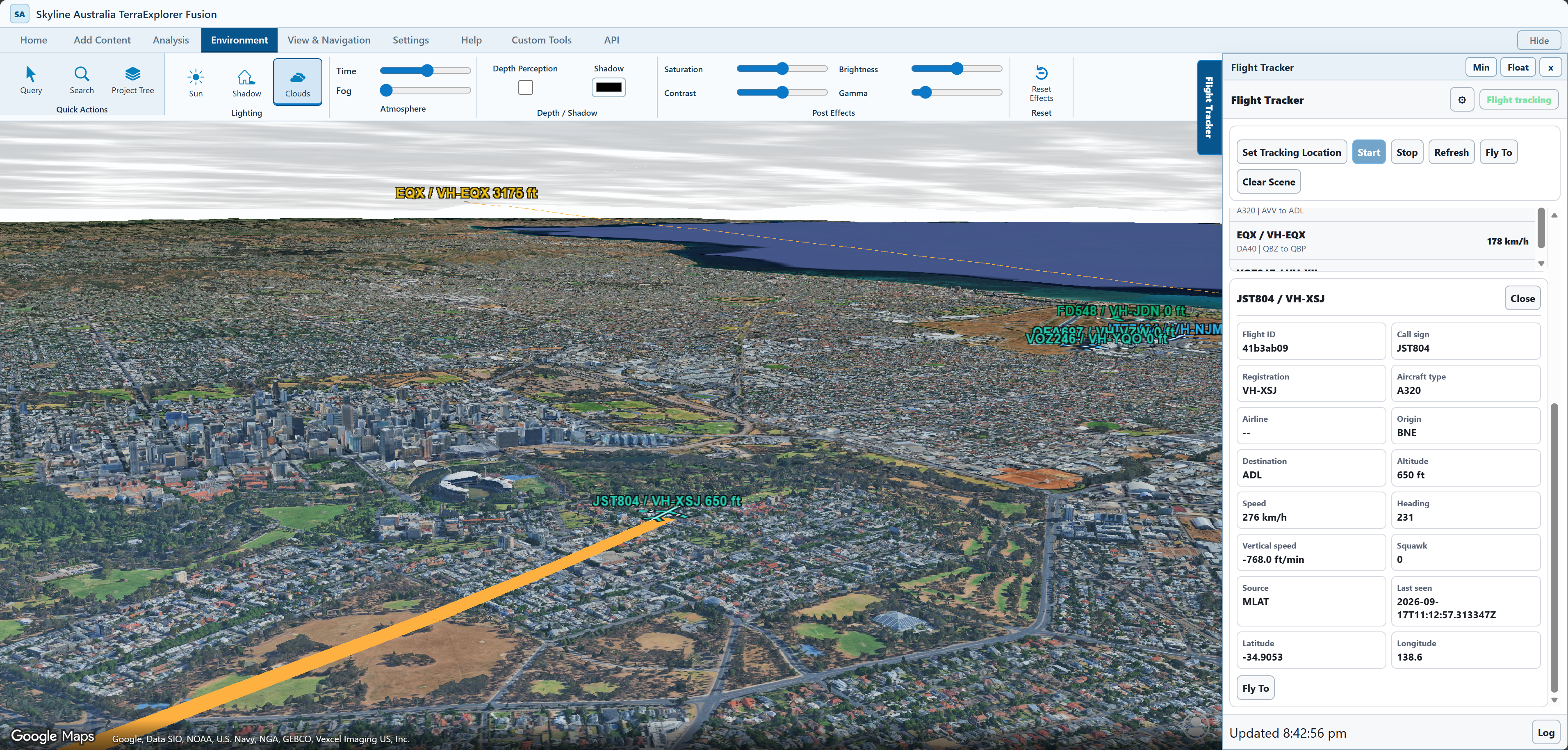
- FlightRadar24 Flight Tracker
Polls the server-side flight API for aircraft around a tracking location. Displays aircraft, labels and trails in Fusion, with flight details, refresh controls and fly-to navigation.
SGWorld.Creator.CreateModelCreates aircraft models at geographic positions. The tracking code retains scene-object references as subsequent flight updates arrive.
Pass a viewer-compatible model URL and a normalised flight record with id, longitude, latitude, altitudeMeters and heading. The backend adapter must convert feet to metres before rendering.
function aircraftRenderer(SGWorld, modelUrl) { const group = SGWorld.ProjectTree.CreateGroup("Flight example"); const aircraft = new Map(); function update(flight) { const position = SGWorld.Creator.CreatePosition( flight.longitude, flight.latitude, flight.altitudeMeters, 3, flight.heading, 0, 0, 0 ); // 3 = terrain-absolute altitude, not height above local terrain. let model = aircraft.get(flight.id); if (!model) { // The first backend observation creates an aircraft in the scene. model = SGWorld.Creator.CreateModel( position, modelUrl, 1, 0, group, "Aircraft " + flight.id ); // Model type 0 = normal model. aircraft.set(flight.id, model); } else { // Later observations move the existing model rather than duplicating it. model.Position = position; } } return { update, // Call for each normalised record returned by a poll. clear() { aircraft.clear(); SGWorld.ProjectTree.DeleteItem(group); } }; }- AIS Vessel Tracker
Connects to the AIS backend to visualise vessel positions and movement. Provides vessel selection, search, tracking and trail controls within the maritime scene.
SGWorld.Creator.CreateTextLabelCreates geographic vessel labels from identifiers and tracking information, complementing the vessel symbols and movement trails.
vessels contains normalised AIS records with mmsi, name, longitude and latitude. This example shows identification labels; the full tool also manages vessel symbols and trails.
function vesselLabelRenderer(SGWorld) { const group = SGWorld.ProjectTree.CreateGroup("AIS label example"); const labels = new Map(); const style = SGWorld.Creator.CreateLabelStyle(); function update(vessel) { const position = SGWorld.Creator.CreatePosition( vessel.longitude, vessel.latitude, 5, 0 ); const text = vessel.name + " · " + vessel.mmsi; let label = labels.get(vessel.mmsi); if (!label) { label = SGWorld.Creator.CreateTextLabel( position, text, style, group, "AIS vessel" ); labels.set(vessel.mmsi, label); } else { label.Position = position; label.Text = text; } } return { update, clear() { labels.clear(); SGWorld.ProjectTree.DeleteItem(group); } }; }- GPS Tracking
Connects mobile-device location updates to Fusion through the GPS backend. Provides a device list and geographic tracking controls, with companion phone pages for submitting positions.
SGWorld.Creator.CreateLabelCreates a scene label for a tracked device. The phone and backend provide the position updates; the viewer API represents the device in the scene.
device is a normalised location update with id, longitude, latitude and altitudeMeters. The phone submits data to the backend; this renderer handles the viewer side.
function deviceRenderer(SGWorld) { const group = SGWorld.ProjectTree.CreateGroup("GPS device example"); const labels = new Map(); function update(device) { const position = SGWorld.Creator.CreatePosition( device.longitude, device.latitude, device.altitudeMeters, 3 ); let label = labels.get(device.id); if (!label) { const style = SGWorld.Creator.CreateLabelStyle(); label = SGWorld.Creator.CreateLabel( position, device.id, "", style, group, "Tracked GPS device" ); labels.set(device.id, label); } else label.Position = position; return label.ID; } return { update, flyTo(id) { const label = labels.get(id); if (label) SGWorld.Navigate.FlyTo(label); }, clear() { labels.clear(); SGWorld.ProjectTree.DeleteItem(group); } }; }- GPS + Video Command Centre
Combines device locations with live phone video. Uses the GPS service and WebRTC signalling to let an operator select a device, view its stream and locate it in the scene.
SGWorld.Analysis.Create3DViewshedCreates a 3D viewshed using an observer position, field of view and range. It supplies a scene-analysis object alongside the selected operator’s location and video.
operator provides longitude, latitude, altitudeMeters and heading. settings supplies cameraHeightMeters, horizontalFov, verticalFov and rangeMeters. This demonstrates scene analysis; WebRTC handles video separately.
function showOperatorViewshed(SGWorld, operator, settings) { if (!SGWorld.Analysis || !SGWorld.Analysis.Create3DViewshed) { throw new Error("The viewer does not expose 3D viewshed creation."); } const group = SGWorld.ProjectTree.CreateGroup("Operator viewshed example"); const observer = SGWorld.Creator.CreatePosition( operator.longitude, operator.latitude, operator.altitudeMeters + settings.cameraHeightMeters, 3, operator.heading, 0, 0, 0 ); // Use the operator's geographic pose as the analysis observer. const viewshed = SGWorld.Analysis.Create3DViewshed( observer, settings.horizontalFov, settings.verticalFov, settings.rangeMeters, group, "Operator camera viewshed" ); SGWorld.ProjectTree.SelectItem(viewshed.ID); // Clear before replacing the observer definition in this small example. return () => SGWorld.ProjectTree.DeleteItem(group); }- GPS + Video AI Detection
Extends the video command centre with browser-based TensorFlow.js COCO-SSD object detection. Displays detections over video while retaining GPS and stream controls; this is a development variant.
SGWorld.ProjectTree.SelectItemSelects the generated viewshed in the project tree. TensorFlow performs video detection separately; this API call connects the inherited scene-analysis workflow to the viewer.
detector is a loaded COCO-SSD model; video is the active HTML video element. drawBoxes draws detector results in the UI. viewshedId identifies an already-created scene analysis object.
async function inspectVideoFrame( SGWorld, detector, video, viewshedId, drawBoxes ) { if (video.readyState < 2) return []; // No decoded frame yet. // TensorFlow performs image detection; SGWorld does not analyse pixels. const predictions = await detector.detect(video); const accepted = predictions.filter(item => item.score >= 0.6); drawBoxes(accepted); // Supplied UI function for the video overlay. // Relate the selected operator to the existing geographic analysis. // This selects a viewshed, not a detected object's geographic position. if (viewshedId) SGWorld.ProjectTree.SelectItem(viewshedId); return accepted; } // Call from the tool's frame loop; stop that loop when video closes. // A 2D detection box alone does not provide a world coordinate.- BIM Indoor Tracker
Demonstrates moving tags within a BIM environment using simulated routes. Includes published-layer configuration, alignment settings, playback and tag details. The demo uses simulated positions rather than live indoor positioning.
SGWorld.Creator.CreateSphereCreates the moving tag markers in the BIM tracking demo. Simulated tag positions drive the marker objects; this example does not provide live indoor positioning.
tag contains a simulated route position: id, longitude, latitude and altitudeMeters. The BIM layers and route-to-world alignment must already be configured.
function indoorTagRenderer(SGWorld) {
  const group = SGWorld.ProjectTree.CreateGroup("Indoor tag example");
  const markers = new Map();
  const colour = SGWorld.Creator.CreateColor(0, 220, 255, 255);
  function update(tag) {
    const position = SGWorld.Creator.CreatePosition(
      tag.longitude, tag.latitude, tag.altitudeMeters, 3
    );
    let marker = markers.get(tag.id);
    if (!marker) {
      marker = SGWorld.Creator.CreateSphere(
        position, 0.4, 0, colour, colour, -1, group, "Tag " + tag.id
      ); // Radius in metres; style 0 = normal sphere; -1 = default density.
      markers.set(tag.id, marker);
    } else marker.Position = position;
  }
  return {
    update, // Playback advances the simulated tag along its route.
    clear() { markers.clear(); SGWorld.ProjectTree.DeleteItem(group); }
  };
}
Panoramas, inspection and data
- Pannellum
Provides a 360-degree panorama viewer alongside Fusion, linking panoramic imagery with the geographic workspace.
SGWorld.Navigate.GetPositionReads the Fusion camera position for coordinating the panorama and geographic views. Camera state provides the link between the two renderers.
viewer is a Pannellum viewer with a calibrated panorama already loaded. yawOffsetDegrees relates the panorama's image heading to geographic north.
function panoramaCameraLink(SGWorld, viewer, yawOffsetDegrees) { function readFusionView() { const camera = SGWorld.Navigate.GetPosition(3); // Camera state can populate the panel's geographic readout. return { longitude: camera.X, latitude: camera.Y, altitudeMeters: camera.Altitude, heading: camera.Yaw }; } function applyPanoramaDirection() { const camera = SGWorld.Navigate.GetPosition(3); camera.Yaw = viewer.getYaw() + yawOffsetDegrees; camera.Pitch = viewer.getPitch(); SGWorld.Navigate.SetPosition(camera); } return { readFusionView, applyPanoramaDirection // Call when the user changes panorama direction. }; } // Panorama-image selection and geographic placement are handled by the panel. // This block illustrates the camera-state bridge between the two viewers.- Sync Panorama
Synchronises panorama viewing and Fusion navigation, with live synchronisation controls for coordinating the two views.
SGWorld.Navigate.SetPositionApplies the position and orientation calculated by the panorama synchronisation code to the Fusion camera.
pose contains the panorama's calibrated longitude, latitude, altitudeMeters, yaw, pitch and fieldOfView. This is the output of the tool's image-orientation and panorama controls.
function applyPanoramaPose(SGWorld, pose) { const camera = SGWorld.Navigate.GetPosition(3); // Apply image location and calibrated orientation together. camera.X = pose.longitude; camera.Y = pose.latitude; camera.Altitude = pose.altitudeMeters; camera.Yaw = ((pose.yaw % 360) + 360) % 360; camera.Pitch = pose.pitch; camera.Roll = 0; SGWorld.Navigate.SetPosition(camera); // Panorama zoom becomes the viewer's field-of-view setting. SGWorld.Navigate.FieldOfView = Math.max( 30, Math.min(120, pose.fieldOfView) ); } // Run while live synchronisation is enabled, after calibration/pose updates. // Stop the panel's update loop when live synchronisation is disabled.- Matterport
Embeds a Matterport 3D Showcase in a tool panel. Includes an external-view fallback when browser or embedding policies prevent it from loading inside Fusion.
This panel embeds an external 3D Showcase rather than calling a TerraExplorer scene method directly. Its integration concern is iframe embedding and browser isolation.
- Tag Tool
Creates and manages geographically located tags with notes and attachments through the tagging backend. Supports recording observations and reviewing them in the scene.
SGWorld.CoordServices.GetDistanceCalculates horizontal distance between the camera location and a tag location for the tool’s geographic distance handling.
tag is a saved observation with longitude, latitude and title. updateDistanceDisplay writes the calculated distance into the panel UI.
function tagActions(SGWorld, tag, updateDistanceDisplay) { const group = SGWorld.ProjectTree.CreateGroup("Tag example"); const position = SGWorld.Creator.CreatePosition( tag.longitude, tag.latitude, 5, 0 ); const label = SGWorld.Creator.CreateTextLabel( position, tag.title, SGWorld.Creator.CreateLabelStyle(), group, "Inspection observation" ); function refreshDistance() { const camera = SGWorld.Navigate.GetPosition(3); // Geographic horizontal distance; this does not include height difference. const metres = SGWorld.CoordServices.GetDistance( camera.X, camera.Y, tag.longitude, tag.latitude ); updateDistanceDisplay(metres); } return { refreshDistance, flyTo: () => SGWorld.Navigate.FlyTo(label), clear: () => SGWorld.ProjectTree.DeleteItem(group) }; }- WMS / WMTS
Provides a dedicated interface for adding map-service layers to Fusion, connecting external raster map services to the project.
SGWorld.Creator.CreateImageryLayerCreates an imagery layer from the configured map-service source and geographic extent, adding raster mapping to the viewer.
initString is the TerraExplorer GIS-plugin configuration built by the tool from service metadata and user selections. It is not just a WMS URL; the Labs tool has separate WMS and WMTS configuration builders.
function mapServiceLayer(SGWorld) {
  let layerId = null;
  function load(name, initString, serviceType) {
    // Replace the previous tool-owned layer when the configuration changes.
    if (layerId) {
      SGWorld.ProjectTree.DeleteItem(layerId);
      layerId = null;
    }
    let layer;
    try {
      layer = SGWorld.Creator.CreateImageryLayer(
        name, 0, 0, 0, 0, initString, "GISplg.rct", "", serviceType
      );
    } catch (error) {
      // The actual Labs helper also handles plugin-name casing.
      layer = SGWorld.Creator.CreateImageryLayer(
        name, 0, 0, 0, 0, initString, "gisplg.rct", "", serviceType
      );
    }
    layerId = layer.ID;
    return layer;
  }
  return {
    load,
    clear() { if (layerId) SGWorld.ProjectTree.DeleteItem(layerId); layerId = null; }
  };
}
Development and service tools
- Command Line
Provides a developer command interface for working with the Fusion viewer and its SGWorld integration.
SGWorld.AttachEventSubscribes to OnLoadFinished so the panel can enable its command workflow when the load event is received. Event subscriptions connect tool state with viewer activity.
setReady updates the panel controls. run is a supplied JavaScript callback representing a developer command; this example avoids evaluating arbitrary command strings.
function commandPanel(SGWorld, setReady) { let projectReady = false; function loaded() { projectReady = true; setReady(true); } setReady(false); SGWorld.AttachEvent("OnLoadFinished", loaded); // Register before the next project load. If opening after a load, // the wrapper must supply its known project-loaded state explicitly. return { markAlreadyLoaded: loaded, execute(run) { if (!projectReady) throw new Error("Wait for the project to load."); return run(SGWorld); // Example: a callback that moves the camera. }, close() { SGWorld.DetachEvent("OnLoadFinished", loaded); setReady(false); } }; }- Backend Monitor
Shows backend service status and log output through the backend manager, helping inspect the services used by tracking and tagging tools.
This panel queries the backend manager over HTTP. It supports the API-based tools but does not itself perform a TerraExplorer scene operation.
- Developer Log
Displays the wrapper’s diagnostic messages, including viewer readiness, tool activity and integration errors.
This panel displays wrapper diagnostics. It supports API integration debugging rather than calling a scene method directly.
Built-in viewer tools
The ribbon also organises Fusion’s existing query, search, project-tree, content, drawing, analysis, environment and navigation controls alongside the custom tools.
API references
Using the TerraExplorer API ↗
Custom Fusion applications and lifecycle callbacks ↗
Fusion-specific API interfaces ↗
Further articles
Further articles will describe individual tools, their data sources, frontend and backend architecture, and how they interact with Fusion.
Project status
Labs is an ongoing development project. This page introduces the current code structure and tool collection. Service availability depends on the host configuration, API credentials and data provider access. The Labs application is not hosted on this website.
← Back to applications