Introduction
This document provides the basic information to get started in creating 3D mesh data using PhotoMesh. This document makes references to the PhotoMesh user manual and Skyline Support articles.
Review the user manuals (About PhotoMesh (skylinesoft.com)) and the knowledge base articles (https://support.skylinesoft.com/hc/en-us/categories/360002453079-PhotoMesh) from the support centre for additional information.
List of Commonly Used Abbreviations
AOIArea of Interest.
ATAero-triangulation.
CCGCamera Calibration Group.
CPTInternal PhotoMesh Point Cloud Format.
DGPSDifferential Global Positioning System.
DSMDigital Surface Model.
DTMDigital Terrain Model.
ENUEast-North-Up.
EXIFExchangeable Image File.
GCPGround Control Point.
GPSGlobal Positioning System.
GNNSGlobal Navigation Satellite System.
GUIGraphical User Interface.
INSInertial Navigation System.
LASLaser Open File Format.
LiDARLight Detection and Ranging.
MSLMean Sea Level.
PPKPost Processing Kinematic.
RMSRoot Mean Square.
SFMStructure from Motion.
SKFIInternal PhotoMesh Feature Files
SMPTThe PhotoMesh Internal Image Format
UTMUniversal Transverse Mercator.
XMLExtensible Markup Language.
Glossary
Exterior Orientation (Extrinsic Variables). The exact location of the cameras focal point in x, y, z coordinates and its orientation expresses as ω, φ, κ (omega, phi, kappa), or yaw, pitch, roll, at the time of image capture.
Interior Orientation (Intrinsic Variables). The internal geometry of the camera system at the time of image capture, defined by the focal length, principal point, and lens distortion co-efficient variables (k1, k2, k3, p1, p2).
Field of ViewA function of focal length and image sensor size.
Fuser. The working component used in PhotoMesh to perform processing tasks.
Focal Length. The distance in millimetres, between the centre of the camera lens to its focal plane, defining magnification and light ray angles.
Principal Point. The interception between the optical axis of the lens and the sensor plane in pixels. Often expressed as cx and cy. Calculation of the principal point is important for considering the decentring effect of the lens, caused by radial/tangential distortion and the manufacturing of the camera system.
Radial Distortion. Modelled by the coefficients k1, k2, k3 and k4 describe the radial distortion curve, where the points of an image are displaced due to the lens characteristics, with close relation to the calibrated focal length. Radial distortion is when light ray bend further around the edges of the lens than what is observed at the optical centre. Radial distortion is classified as negative radial distortion (pincushion) and positive radial distortion (barrel).
Tangential Distortion. Occurs when the lens and image is not parallel. The tangential distortion coefficients p1 and p2 model this distortion.
PhotoMesh Components
PhotoMesh consists of two main components. The first component is the GUI interface, also known as the editor, allows the user interacts with the software. The second component is the PhotoMesh fuser application, which performs all the processing tasks. (PhotoMesh Components (skylinesoft.com)).
The PhotoMesh application, is installed on the main computer (referred to as the master computer), and is used to prepare, submit, process, monitor, and review the entire PhotoMesh project.
- The PhotoMesh Build Manager is launched from the PhotoMesh GUI. The Build Manager is used for managing and monitoring the PhotoMesh project. The PhotoMesh Build Manager keeps track of all current and completed build tasks. The Build Manager also distributes and assigns all the processing tasks to the PhotoMesh fusers.
The PhotoMesh Fuser is the worker component of PhotoMesh. The Fuser component allows you to distribute the processing workload between many computers within network. Multiple PhotoMesh Fusers can be launched on a single computer to fully utilise the CPU processing capacity.
- The PhotoMesh Fuser Working/Pool Folder is a network folder in which the PhotoMesh fusers on the master and client computers communicate. The Working/Pool folder is used to communicate and share information. For example, collecting and depositing pending tasks and updating fuser availability, status and progression.
Getting Started Installing PhotoMesh and PhotoMesh Fusers
For more information on PhotoMesh installation, review the sections from the user manual outlined below.
- Software and Hardware Requirements (Master/Fuser Computer) (skylinesoft.com).
- License Mechanism for PhotoMesh (skylinesoft.com)
- PhotoMesh License Options (skylinesoft.com)
- Installing PhotoMesh (skylinesoft.com)\
- Silent Installation of PhotoMesh (skylinesoft.com)
- Configuring PhotoMesh to Use the Skyline Floating License Server (SFLS) (skylinesoft.com)
- Installing PhotoMesh Fusers (skylinesoft.com)
Exercise 1: My First PhotoMesh Project
This section provides the basic information to create a new project and process input images into 3D mesh data.
Creating a New Project
Start PhotoMesh by clicking the PhotoMesh.exe desktop shortcut icon or by clicking Start > type PhotoMesh > select the PhotoMesh.exe icon.
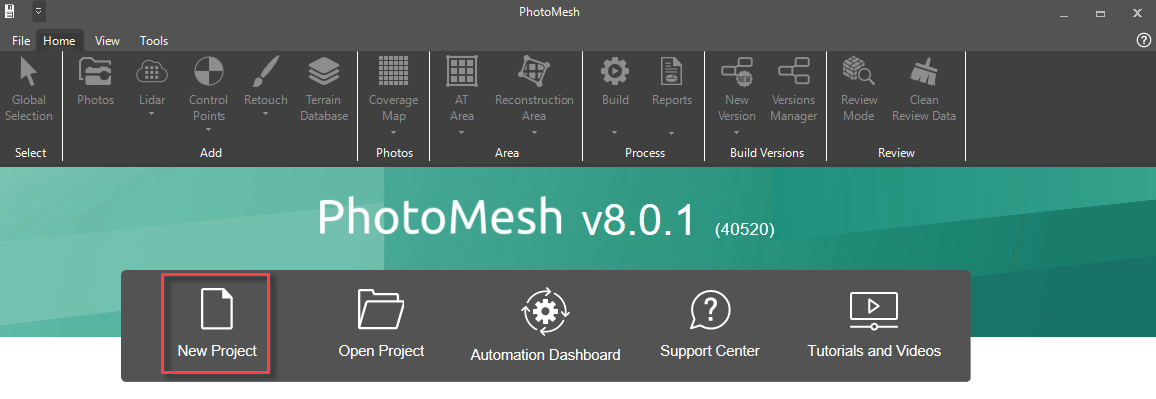
When PhotoMesh launches, the start page will be displayed.
- Select ‘New Project’ from the available options.
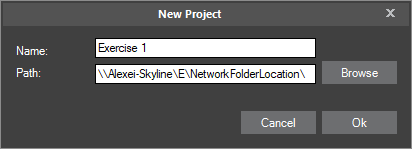
The ‘New Project’ dialog box will appear.
- Enter the name and the file path for the project (UNC path for networked systems).
Set the path to a network folder location if additional network computers will be used for the PhotoMesh processing. Alternatively, if the Path is set to a local hard drive on the master computer, ensure that all network client computers have read and write access.
Refer to Creating and Opening a PhotoMesh Project (skylinesoft.com) in the PhotoMesh user manual.
Importing Photos into the Project
After PhotoMesh has created a new project, the Add Photos Wizard will be displayed.
- Images containing embedded EXIF metadata can be added by selecting the options to import either by files or folders.
- Load photo files from disk in JPG, TIF or IIQ format.
- If images do not contain any embedded EXIF metadata, then using the ‘load photos from list’ option is required.
- Load an Excel/XML file with a list of photos, their file paths, all photo information (e.g., XYZ, OPK/YPR) and photo collection and camera information (e.g., focal length, sensor width, pixel size).
- Load a CSV file with a list of photos, their file paths and XYZ and OPK/YPR photo information.
Refer to Step 3: Loading Photos and Other Input Sources and Preparing the Project (skylinesoft.com) in the PhotoMesh user manual.
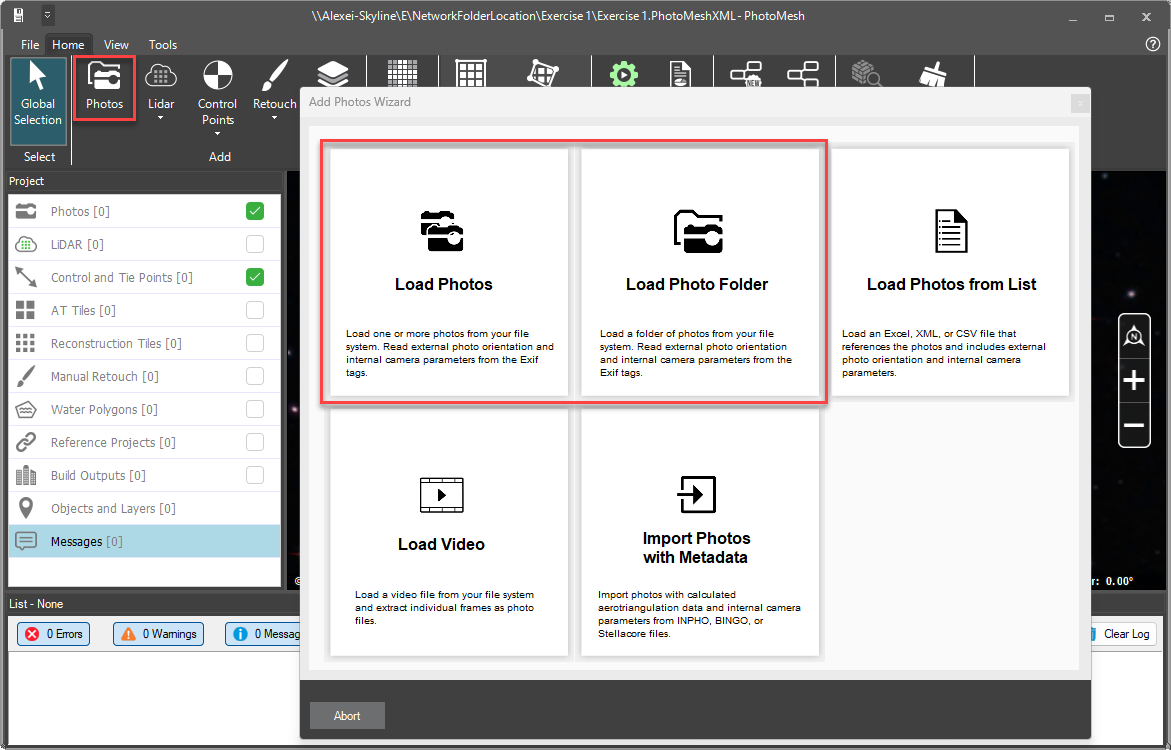
- To import the photos with embedded EXIF metadata into the project, select photos from the ribbon, then ‘Load Photo Folder’.
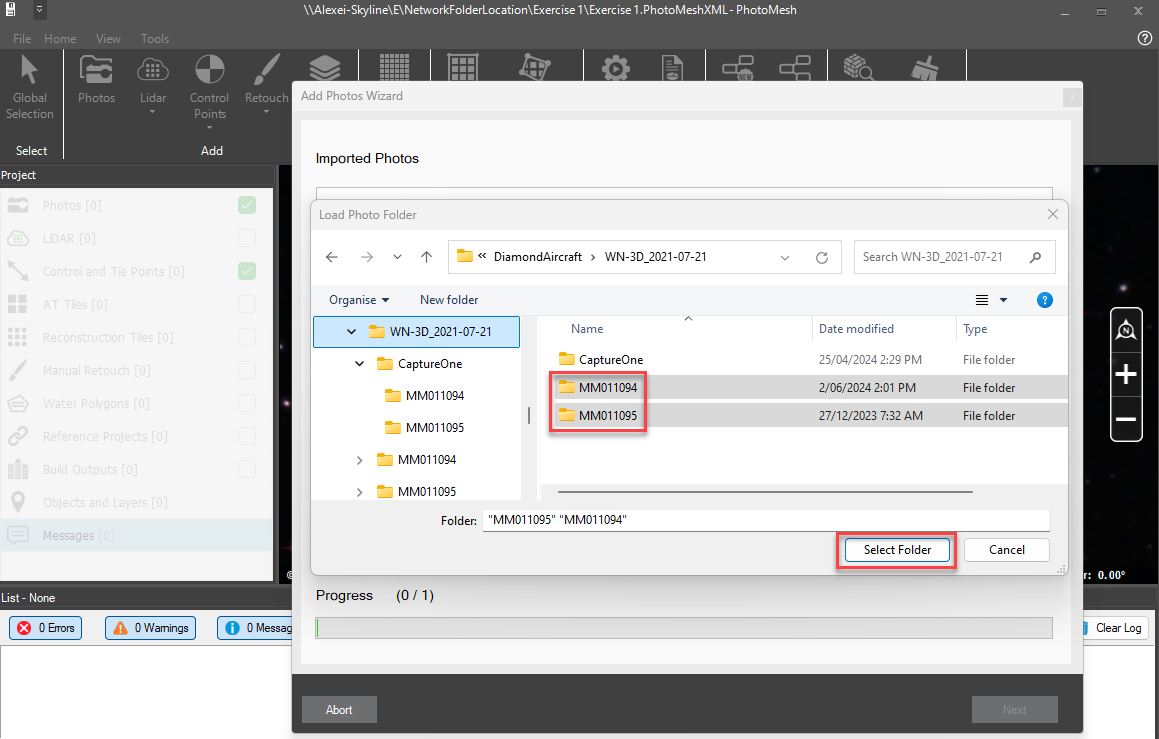
- Using the file explorer window, navigate and select the folder containing the photos. All subfolders which are contained in the folder will also be added to the project.
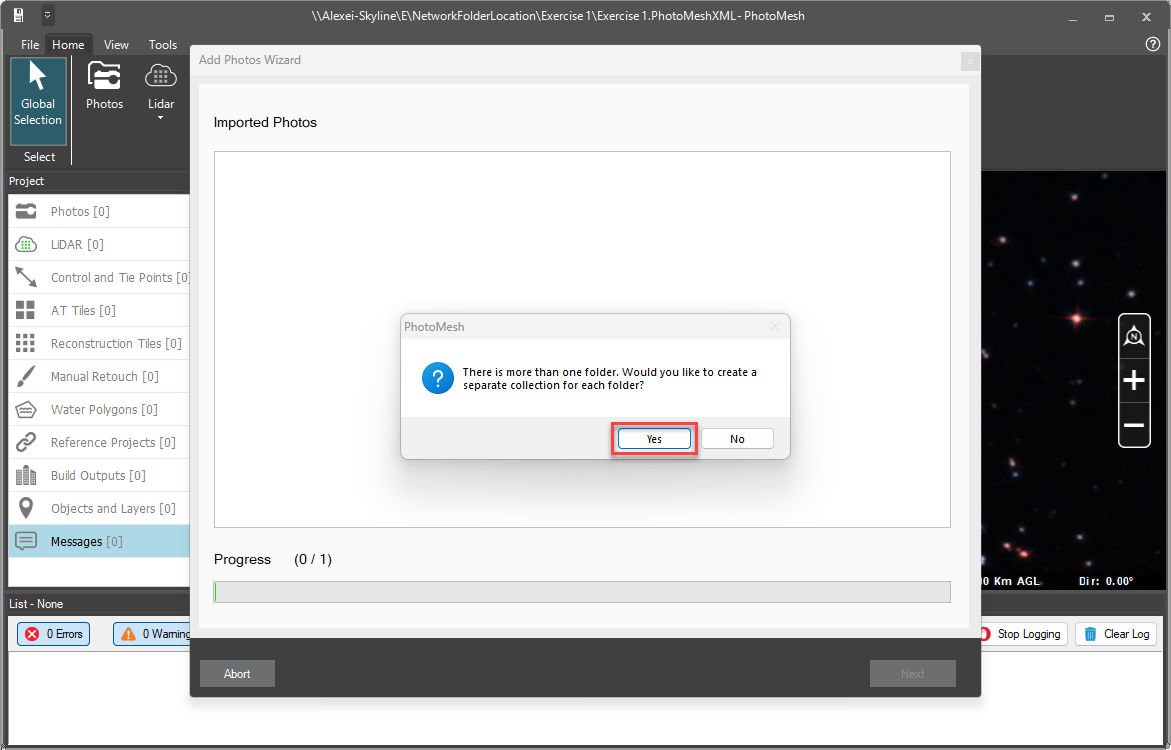
- After the folder has been selected, a prompt will appear. ‘There is more than one folder. Would you like to create a separate collection for each folder? Select ‘Yes’ to create an image collection for each folder, or ‘No’ to merge all folders into one collection.
- If you select ‘No’ to merge collections and if PhotoMesh detects images within the collection that have different image properties, the Add Photos Wizard will prompt: ‘There are photos from different cameras in the collection. Do you want to group photos by camera?’.
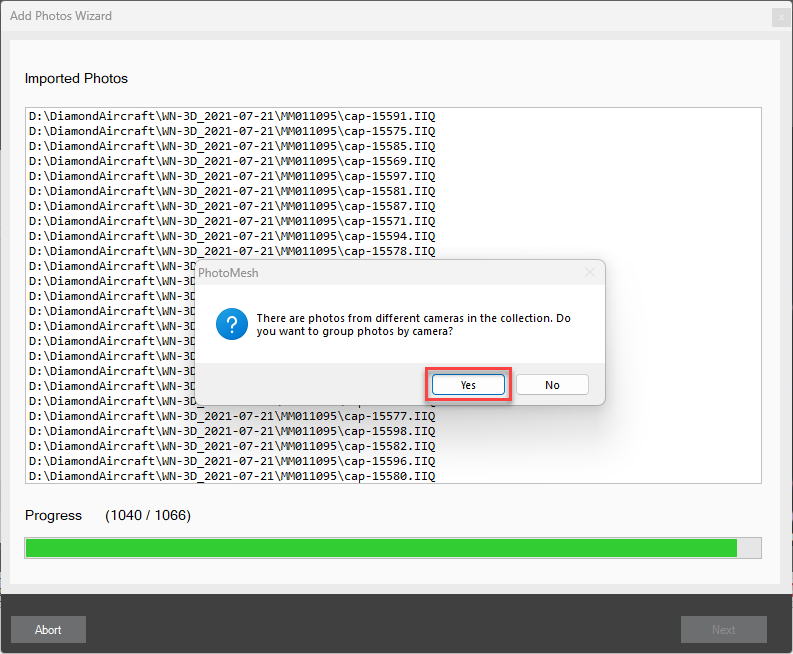
If there are images in the folder with different image properties, then the images must be separated into different collections. By grouping the images by the camera properties, intrinsic camera parameters can be calculated separately for each collection. For example, when multiple physical cameras are utilised in the image capture, each collection will have slightly different focal lengths, principal point, radial and tangential distortion coefficients.
Images from some camera systems may be missing some image EXIF metadata.
- If any camera information is missing, such as Sensor Width, input the values into the ‘Add Photos Wizard’ when prompted.
- Check the input coordinate system. Change the Coordinate System to WGS84 + ellipsoid (remove the EGM96 geoid height datum). Click the link icon to apply the same value to all image collections in the list.
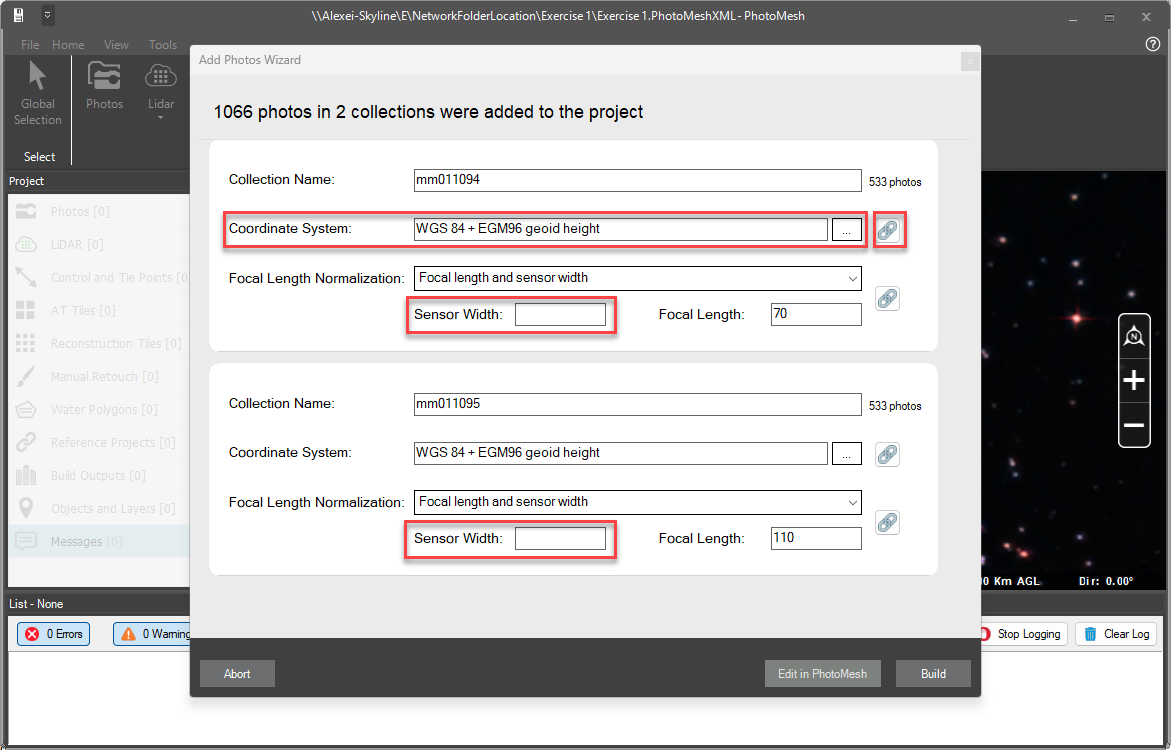
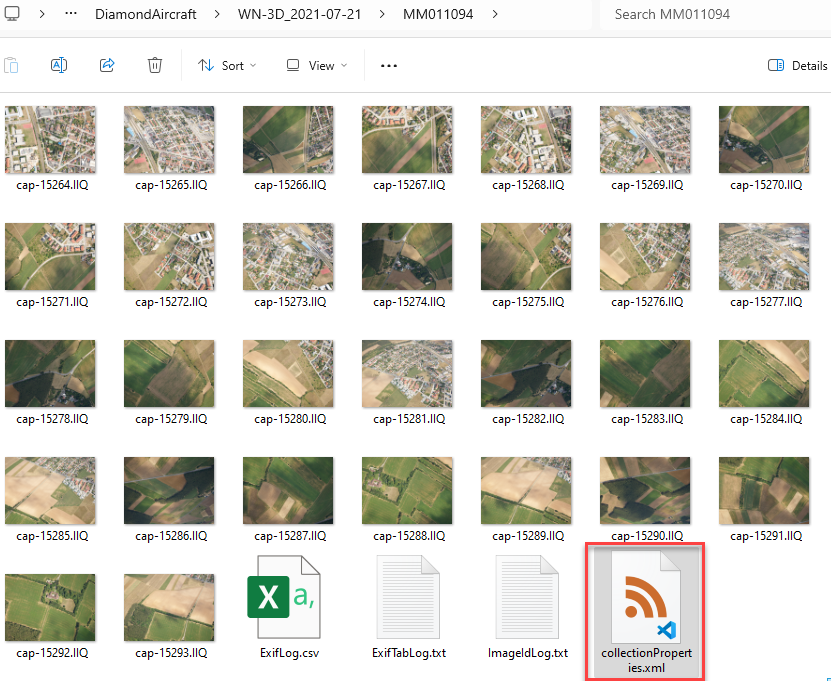
If it is normal to use only a single camera system, and it is not expected that the image collection properties will change, it may be more convenient to create a collectionProperties.xml file for each camera group. PhotoMesh will automatically detect and read the collectionProperties.xml file within the image folder and will apply the image properties from the collectionProperties.xml. However, if this is not relevant, then the next section can be skipped.
- Create an XML file called collectionProperties.xml as shown below in the example. The collectionProperties.xml file will contain the following information.
- Spatial Reference System.
- Collection Name.
- Image Dimensions (width and height).
- Bands (RGB or other),
- Focal Length.
- Pixel Size.
- Principal Point and the Reference Method.
- Orientation parameters and offsets.
- Altitude offsets.
<?xml version="1.0" encoding="UTF-8"?>
<BlocksExchange version="2.2">
<!-- Block definition -->
<SpatialReferenceSystems>
<SRS>
<Id>0</Id>
<Name>WGS 84</Name>
<Definition>GEOGCS["WGS 84",
DATUM["WGS_1984",
SPHEROID["WGS 84",6378137,298.257223563,
AUTHORITY["EPSG","7030"]],
AUTHORITY["EPSG","6326"]],
PRIMEM["Greenwich",0,
AUTHORITY["EPSG","8901"]],
UNIT["degree",0.0174532925199433,
AUTHORITY["EPSG","9122"]],
AUTHORITY["EPSG","4326"]]</Definition>
</SRS>
</SpatialReferenceSystems>
<Block>
<Photogroups>
<!-- A collection is a homogeneous group of photographs, all taken by the same physical camera with identical focal length and principal point.-->
<Photogroup>
<!-- Name of the collection -->
<Name>MM011094</Name>
<!-- (Mandatory) Width and height of the photos, in pixels. If you do not want the collectionProperties.xml to override the width or height information in the metadata encoded in the photo files, set their values equal to 0. -->
<ImageDimensions>
<Width>14204</Width>
<Height>10652</Height>
</ImageDimensions>
<!-- Optional Parameters. Don’t include if you do not want the collectionProperties.xml to override the information in the metadata encoded in the photo files. -->
<!-- (Optional) Bands in comma delimited string format, e.g., (Red,Green,Blue,NIR). Possible values are: Grayscale, Red, Green, Blue, NIR, InfraRed, RedEdge, Alpha, Pan, SWIR_1, SWIR_2, TIR_1, TIR_2, Costal, Custom_0, Custom_1, Custom_2, Custom_3, Custom_4, Custom_5, Custom_6, Custom_7, Custom_8, Custom_9, Exclude (This band will be ignored.) -->
<Bands>Red,Green,Blue</Bands>
<!-- (Optional) Focal length in millimeters. -->
<FocalLength>70</FocalLength>
<!-- (Optional) Size of a physical pixel on the camera sensor in millimeters. -->
<PixelSize>0.0037595043649676146</PixelSize>
<!--(Optional) Origin and units of the principal point. The possible values are: topleftpixels topleftmm centerpixels centermm -->
<PrincipalPointReferenceMethod>centerpixels</PrincipalPointReferenceMethod>
<!-- (Optional) PrincipalPoint x and y values, in the units set by PrincipalPointReferenceMethod. -->
<PrincipalPoint>
<x>0</x>
<y>0</y>
</PrincipalPoint>
<!--Use yaw, pitch, roll values for orientation -->
<UseYPR></UseYPR>
<!-- (Optional) Offset along the Phi axis in degrees.-->
<PhiOffset>0</PhiOffset>
<!-- (Optional) Offset along the Kappa axis in degrees.-->
<KappaOffset>0</KappaOffset>
<!-- (Optional) Offset along the Omega axis in degrees. -->
<OmegaOffset>0.0</OmegaOffset>
<!-- (Optional) Offset from the current altitude value in the coordinate system units. If Lat-Long, use meters. -->
<AltitudeOffset>0</AltitudeOffset>
<!-- (Optional) Flips the Phi axis.-->
<FlipPhi>false</FlipPhi>
<!-- (Optional) Flips the Kappa axis.-->
<FlipKappa>false</FlipKappa>
<!-- (Optional) Flips the Omega axis.-->
<FlipOmega>false</FlipOmega>
<!-- (Optional) Boolean that determines whether to include this collection in the point cloud.-->
<UseInDpc>true</UseInDpc>
<!-- (Optional) Boolean that determines whether to include this collection in the textured model.-->
<UseInModelTexture>true</UseInModelTexture>
<!-- (Optional) Boolean that determines whether to include this collection in the orthophoto. -->
<UseInOrthoTexture>true</UseInOrthoTexture>
<!-- (Optional) Radial and tangential distortion coefficients calculated using the Brown-Conrady model. See https://en.wikipedia.org/wiki/Distortion_(optics)#Software_correction for more information. -->
<Distortion>
<!-- (Optional) Defines the 1st radial distortion coefficient. -->
<K1>0.0</K1>
<!-- (Optional) Defines the 2nd radial distortion coefficient. -->
<K2>0.0</K2>
<!-- (Optional) Defines the 3rd radial distortion coefficient. -->
<K3>0.0</K3>
<!-- (Optional) Defines the 1st tangential distortion coefficient. -->
<P1>0.0</P1>
<!-- (Optional) Defines the 2nd tangential distortion coefficient. -->
<P2>0.0</P2>
</Distortion>
</Photogroup>
</Photogroups>
</Block>
</BlocksExchange>- Place the collectionProperties.xml file in all relevant image folders.
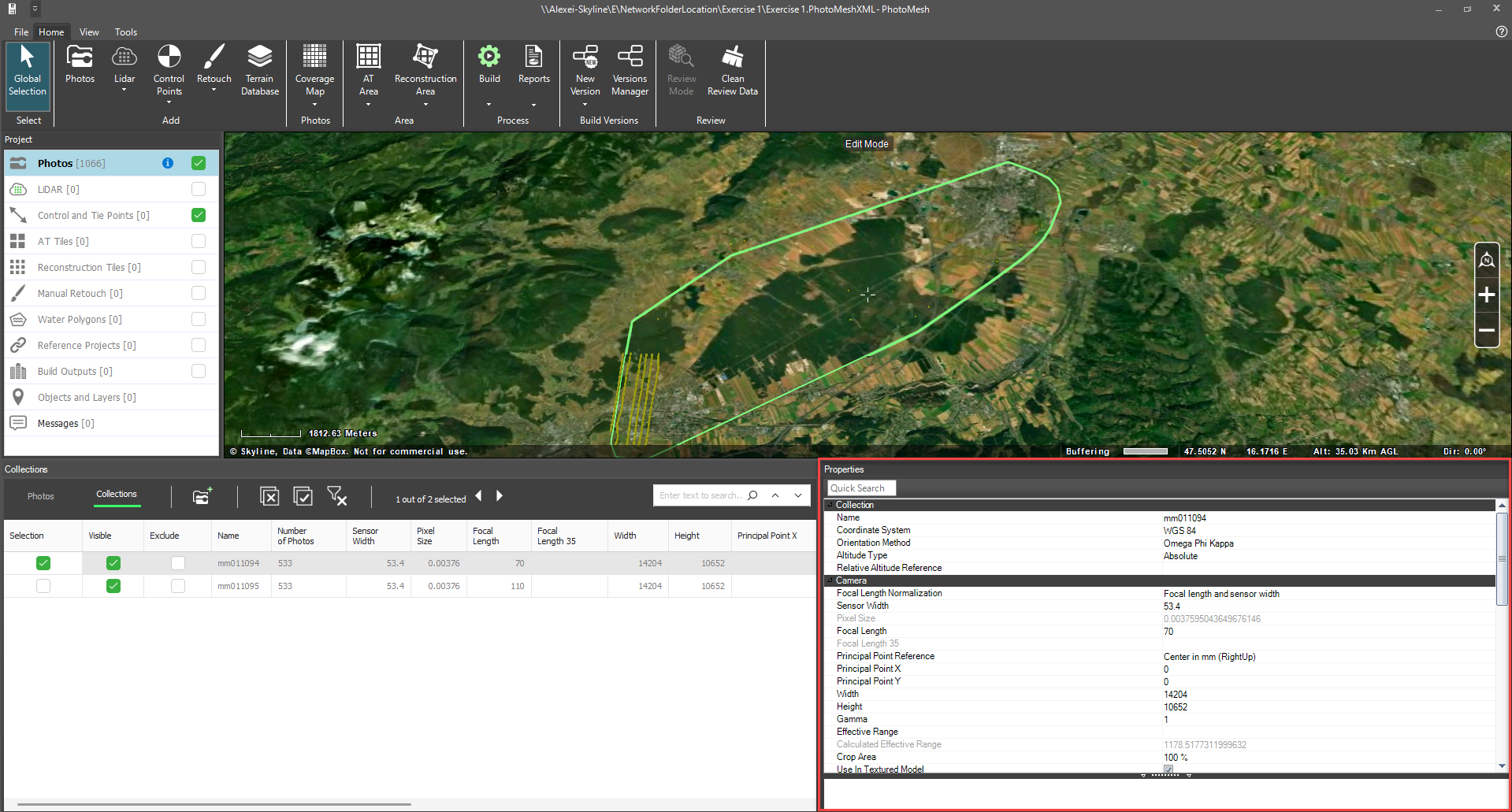
- Once all the image collections have been successfully imported into the PhotoMesh project, the image collection properties can be reviewed and edited if required. Double check all the parameters and ensure that the information is correct.
Set the default Working Folder in the PhotoMesh Options
If network PhotoMesh Fusers are being used, it is best to set a new default working folder location in the PhotoMesh options. This folder should be in a network location that all client computers can access with read/write permissions. However, if you intend to use only local fusers on the master computer, then it is not required to specify a new working folder.
- Press the F9 shortcut or navigate to the PhotoMesh project options through the file menu.
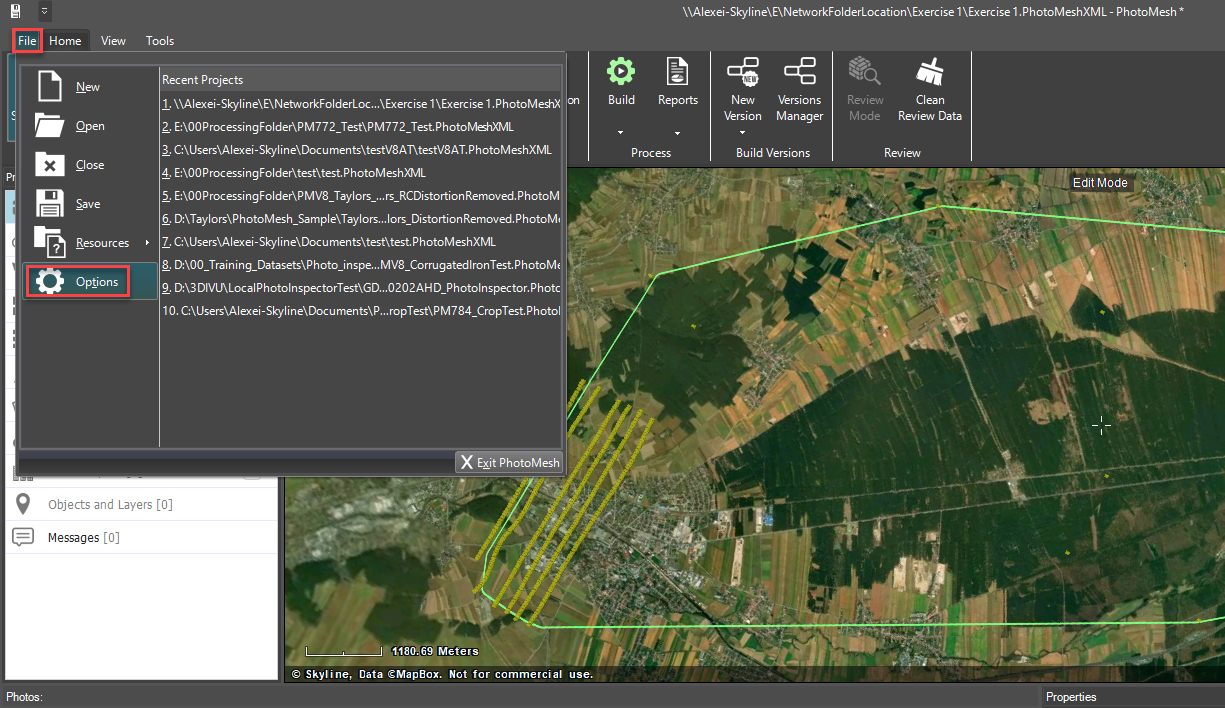
- In the Project section of the PhotoMesh options, additional metadata can be added to the project.
- Add additional metadata such as a project description and any other relevant project tags.
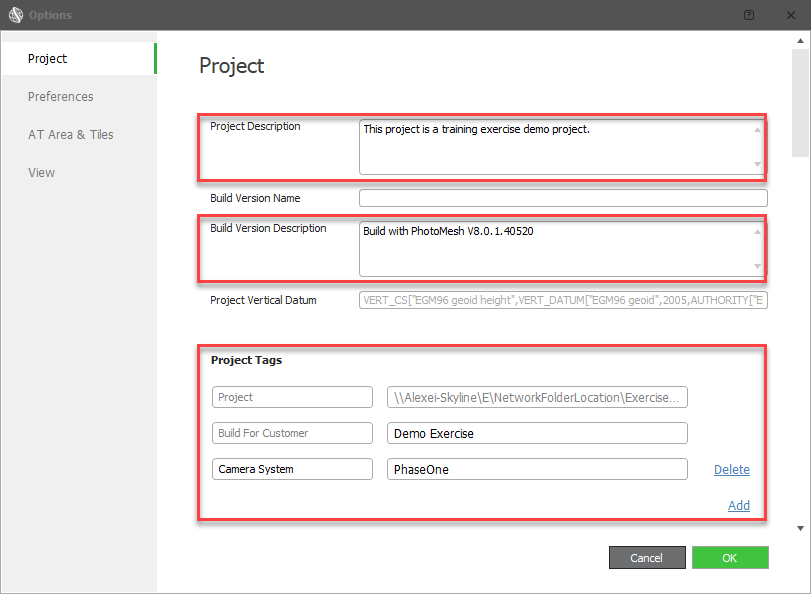
- In the Preferences section of the PhotoMesh options, set the network path of the working folder. Ensure a UNC path is used in a network environment. If drive mapping is being used, ensure that the drive is mapping letter is the same for each client.
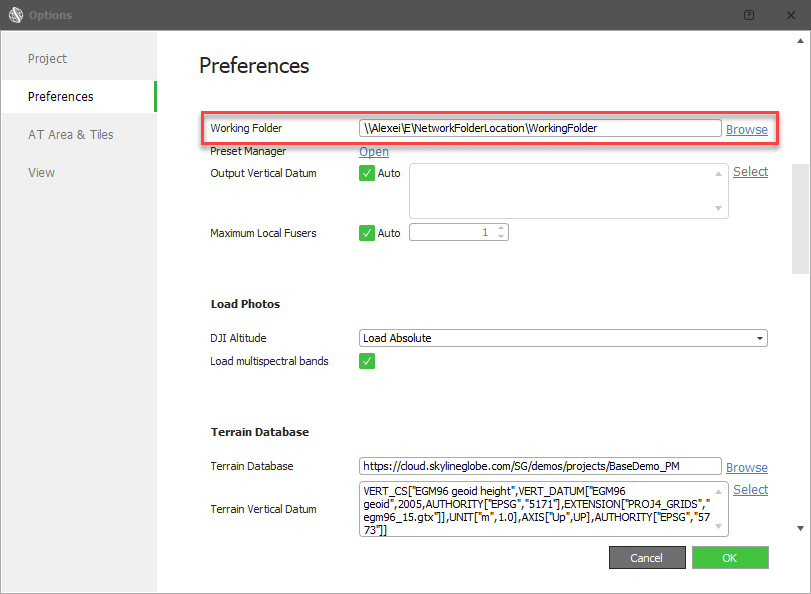
For more information on setting the working folder, refer to Fuser Management (on the Master computer) (skylinesoft.com) from the PhotoMesh user manual.
Setting the Aerotriangulation Area
The AT area defines where PhotoMesh will perform the aerotriangulation. Images that are too far from the AT boundary area will be excluded from the AT calculation.
When photos are initially imported into the project, the AT polyline boundary will be set automatically, based on the image positions. A buffer value can be applied based on a specific value, or by the images effective range.
Shown below in the screenshot, test photos were collected during the flight from the airport. This resulted in AT and reconstruction boundary being unnecessarily large. Photos that are not a part of the area of interest should be removed.
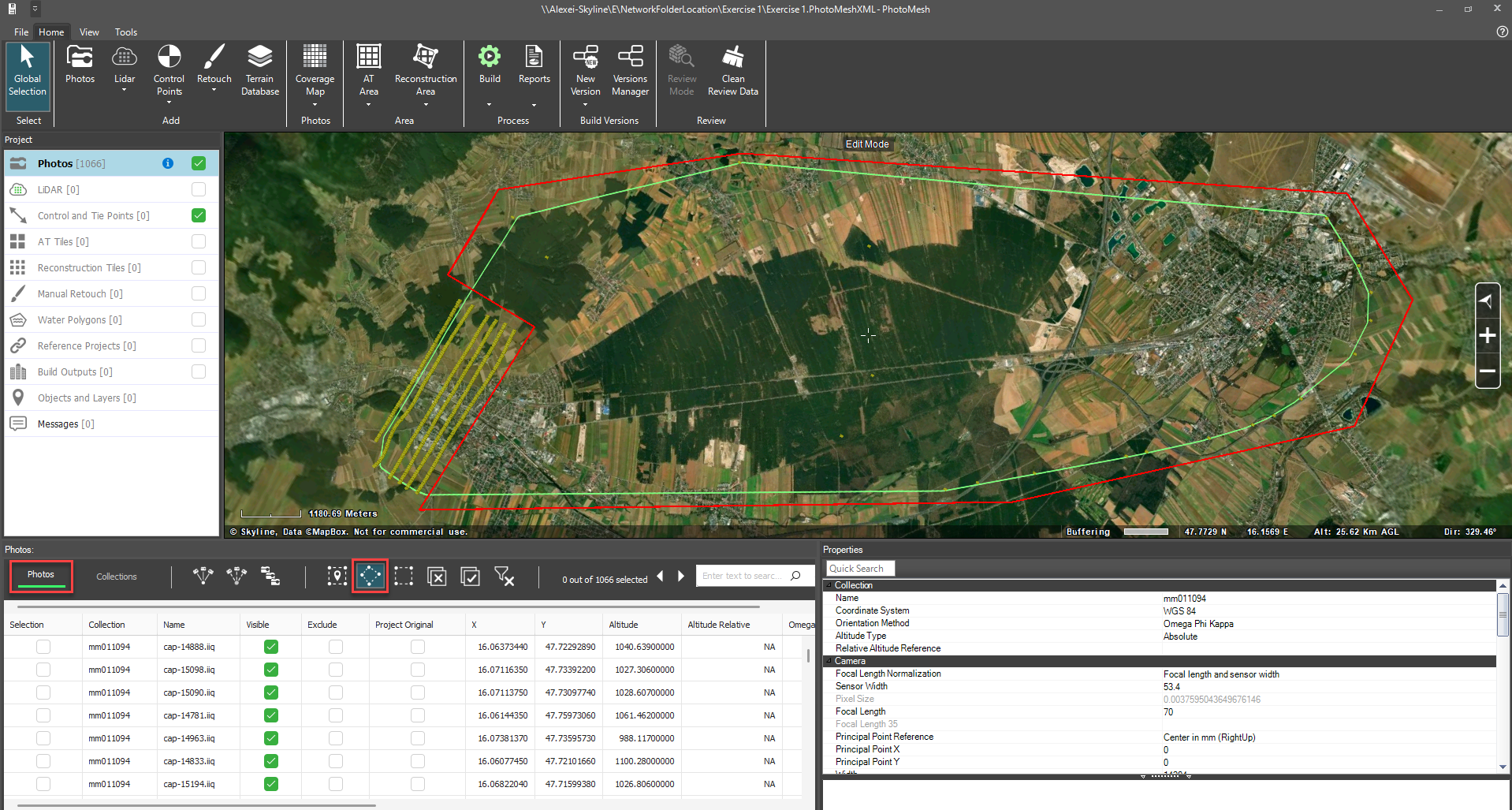
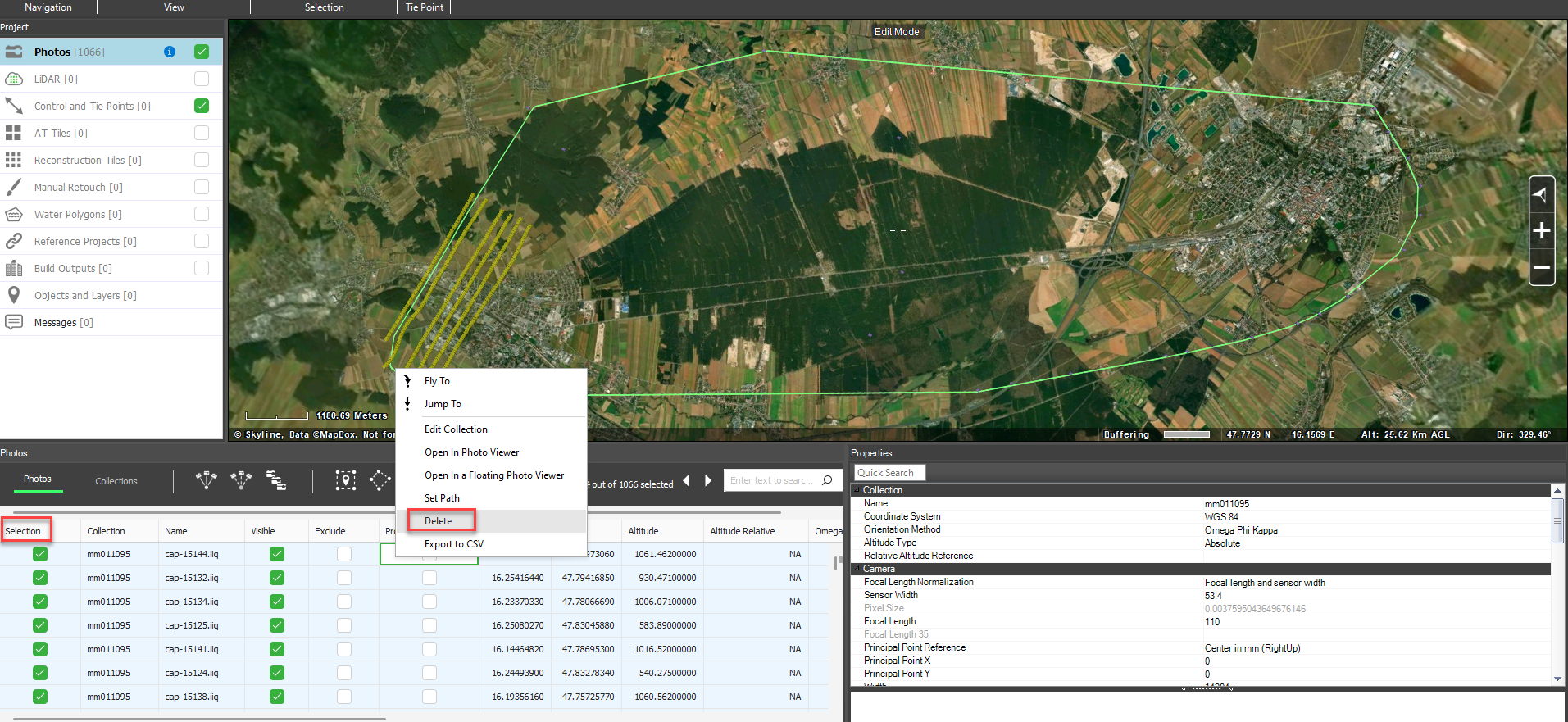
- From the Photos attribute table, select the ‘polygon selection’ icon. Draw a polygon around the images that should be excluded from processing.
- Delete the selected images.
- Change the automatic settings to redraw the AT polygon boundary automatically.
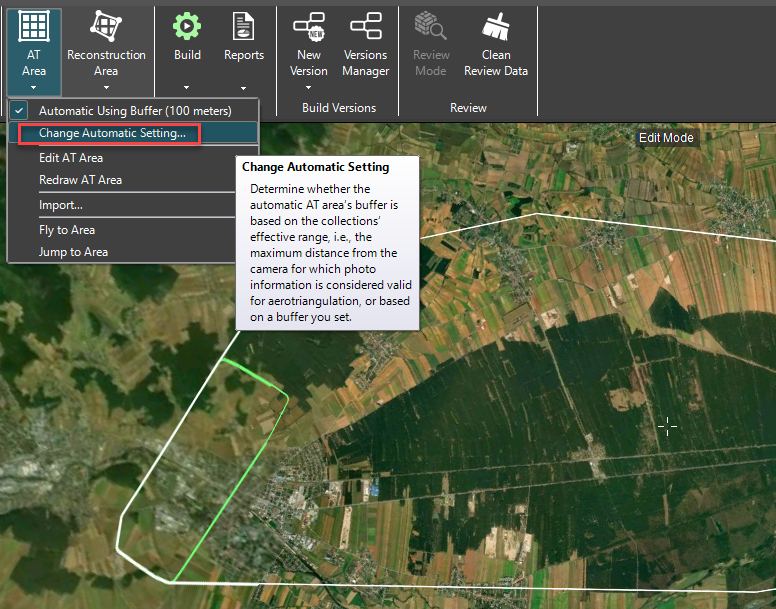
- From the AT Area icon, select Change Automatic Setting.
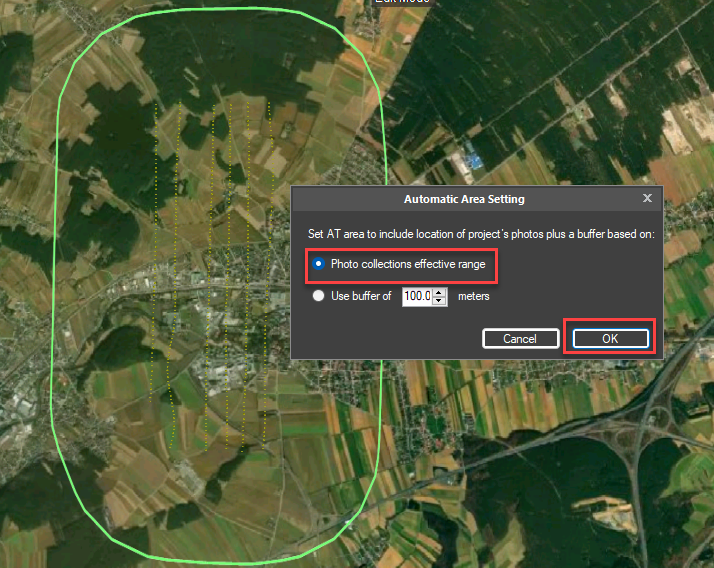
- Select to create a AT area buffer based on the effective range. Take note, depending on the effective range of the images, the AOI may be excessively large. Images without orientation information will have a larger effective range than images which have orientation.
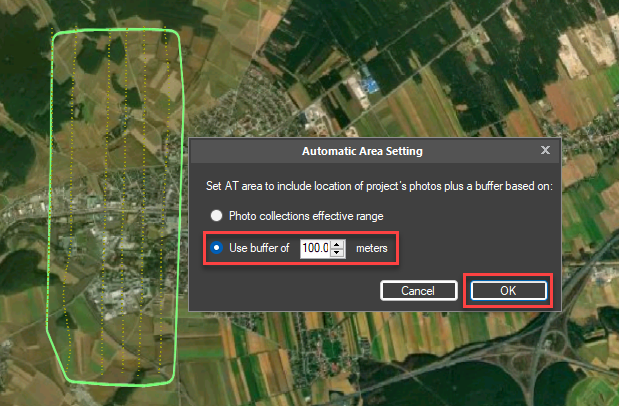
- An alternative to using the images effective range, a buffer value can also be specified.
The AT and reconstruction area may be edited, redrawn or imported from a feature layer file as shown below.
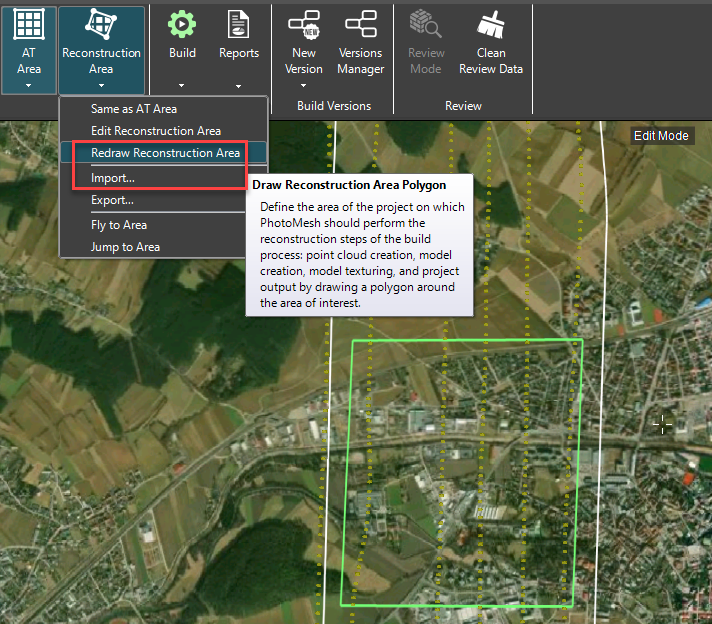
For more information on setting the AT and reconstruction boundary, refer to: Setting the AT (Aerotriangulation) Area (skylinesoft.com) and Setting the Reconstruction Area (skylinesoft.com) from the PhotoMesh user manual.
Setting the Projects Build Parameters
The build process can be started by selecting the build icon, located in the build group within the home tab.
For more information on starting a build, refer to: About Building (skylinesoft.com), in the PhotoMesh user manual.
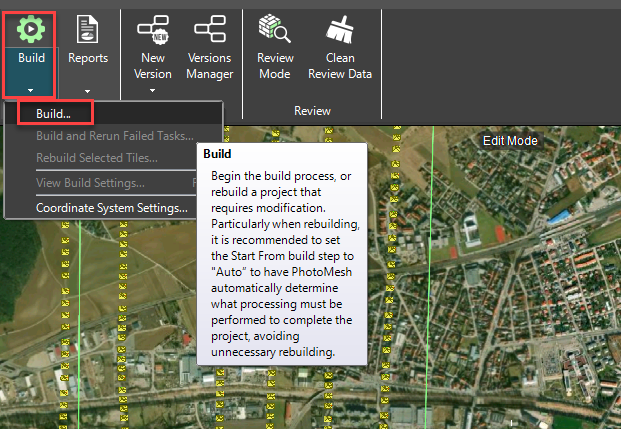
The build icon will open the build parameters window (shown below). The Build Parameters window allows the user to select the Build Settings and other Advanced build settings.
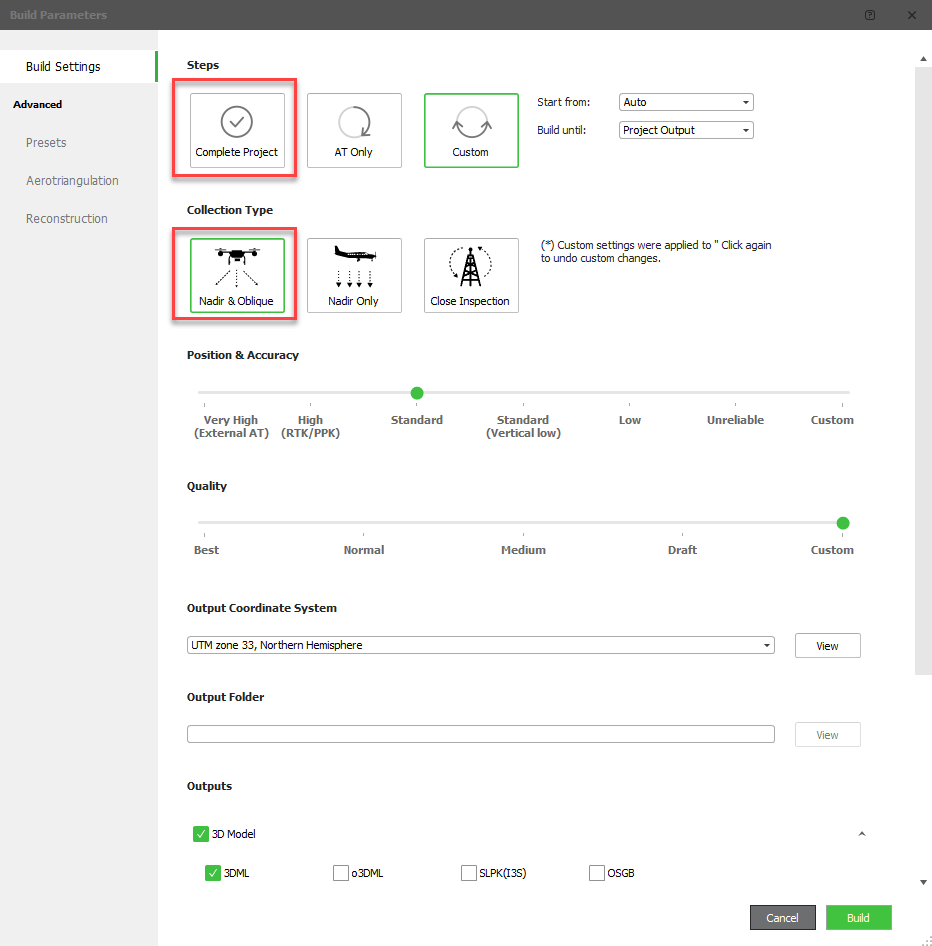
- Select Complete Project and Nadir & Oblique from the Steps and Collection type options.
- Select the output coordinate system for the project. By default, PhotoMesh will output the project in the relevant UTM coordinate system.
- For simple projects, set the desired Position/Accuracy and Quality settings.
- Select the output formats that are required for the project. E.g. 3DML, SLPK, DTM, DSM, LAS etc.
When selecting the Custom build step option, you can manually set the ‘Start from’ and ‘Build until’ steps. This option can be used when rebuilding specific reconstruction tiles with different reconstruction settings.
When the ‘AT Only’ build step option is selected, PhotoMesh will only perform the aero-triangulation step. This allows the user to review the AT results before building the complete project. This is option is primarily used when working with ground control points, where optimisation of the AT is required.
Selecting PhotoMesh Presets
PhotoMesh pre-sets change the normal behaviour of the software.
- From the Preset Manager, add the ‘AT: More Aggressive Match’ and ‘Dataprep: Set SMPT quality to JPEG 98%’.
- Select ok to add the presets to the build.
The ‘AT More Aggressive Match’ setting is useful for datasets where there is a large variance of camera angles. The ‘Dataprep: Set SMPT quality to JPEG 98%’ setting ensures that minimal image compression is performed. If file size is an issue, then this preset can be removed. PhotoMesh will then use the default compression value of 95%.
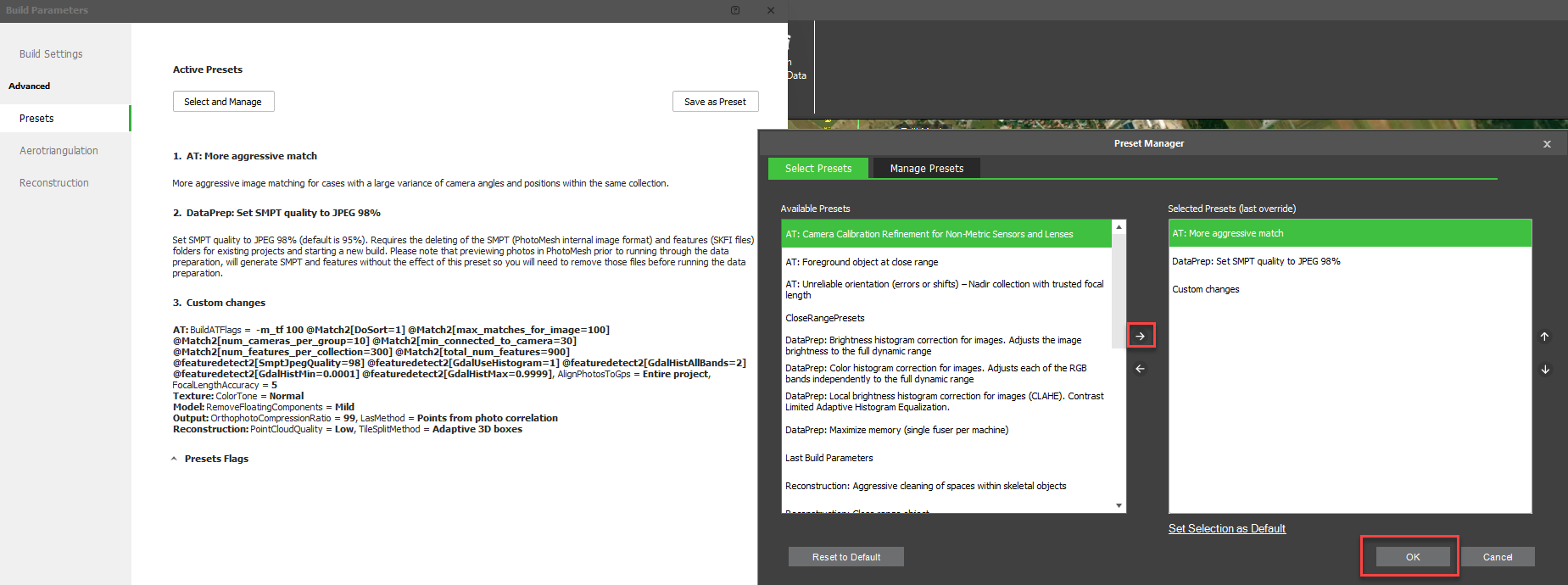
- To read a more detailed description of the PhotoMesh presets, select Manage Presets.
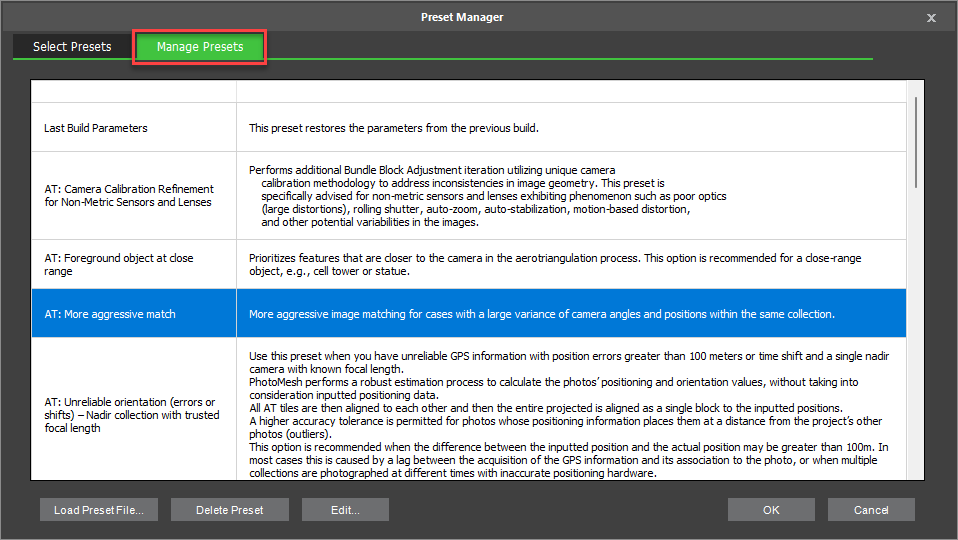
To read more about PhotoMesh presets, refer to: Working with Presets (skylinesoft.com) in the PhotoMesh user manual.
Selecting Aero-triangulation Parameters
Shown in the screenshot below are the advanced Aerotriangulation options.
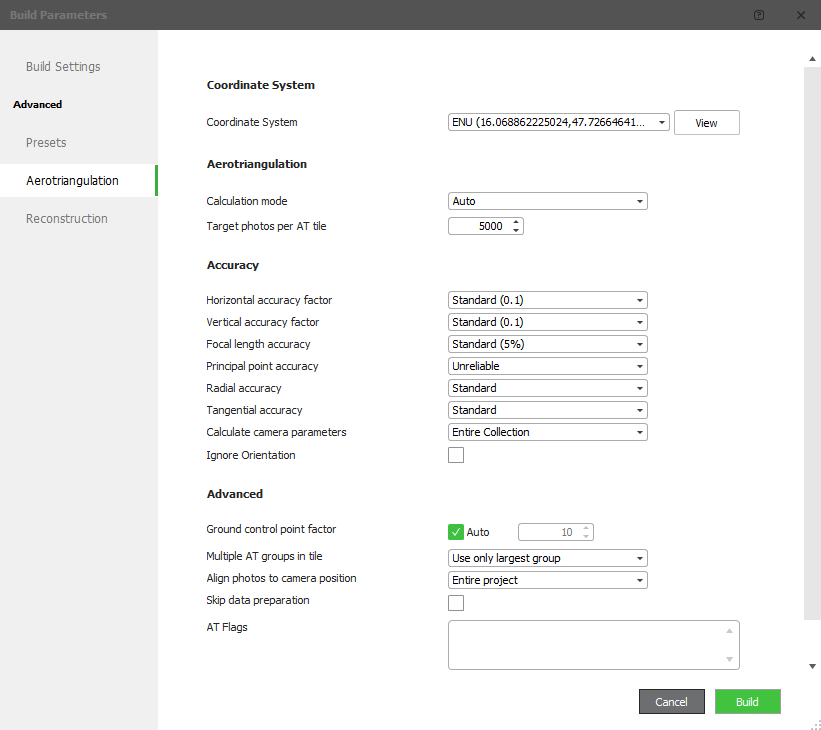
Set the AT parameters with the following considerations:
Table . Aerotriangulation Parameters.
| AT Parameters | Description |
|---|---|
| Coordinate System. | The coordinate system in which the aerotriangulation is performed. By default, PhotoMesh will utilise the ENU (East-North-Up) coordinate system. ENU utilises cartesian coordinates (xEast, YNorth and zUp) to represent position relative to a local geodetic origin point. The geodetic origin point uses geodetic latitude, longitude, and ellipsoid height. Note: A different coordinate system may be used to perform the aerotriangulation stage, if the aerotriangulation data needs to be exported and shared in a specific coordinate system. If the Aerotriangulation data is only used in PhotoMesh, then it is best to use the default internal ENU coordinate system. |
| Camera Position Accuracy. | The accuracy of the camera positions and orientation information if available. For example, whether location information was collected by a standard GPS, or a DGPS and INS. |
| Target Photos Per AT Tile. | The number of target photos in the AT tile, determined by the total number of photos in the project. Also consider the available RAM in the computer system when calculating large AT tiles. For large projects, typically multiple AT tiles will be generated. |
| Focal Length Principal Point Accuracy | The Accuracy of the focal length and principal point. |
| Radial and Tangential Parameters. | Whether Radial and Tangential camera parameters should be calculated or whether to use pre-calibrated camera parameters if available |
| Ground Control Point Factor. | The Ground control point factor. For example, higher weighting can be assigned to trusted ground control points. |
| Intrinsic Camera Parameters. | Whether intrinsic camera parameters are calculated for each collection or per photos. If the intrinsic camera parameters are not reliable, such as a variable focal length caused by lens zooming, then intrinsic parameters should be calculated per photo. Note: Calculating intrinsic camera parameters per photo may take significantly longer to process. |
| Align to the AT Tile | The method in which camera positions are aligned to the AT tile. Relevant when using multiple AT tiles. For example, when using alignment ‘per AT tile’ individual tiles are aligned to the control and image positions. When using ‘Entire project’ AT tiles are align to the camera positions, then to other AT tiles, and then aligned to all camera positions as a single block. This is useful for project with unreliable camera position accuracy. |
| Skip Data Preparation. | If data preparation has been performed previously, that is, SMPT and feature files have already been created, the ‘Skip Data Preparation’ option can be selected to save processing time. |
| Flags. | AT Customisation Flags. |
Setting Reconstruction Build Parameters
Shown below are the advanced reconstruction settings.
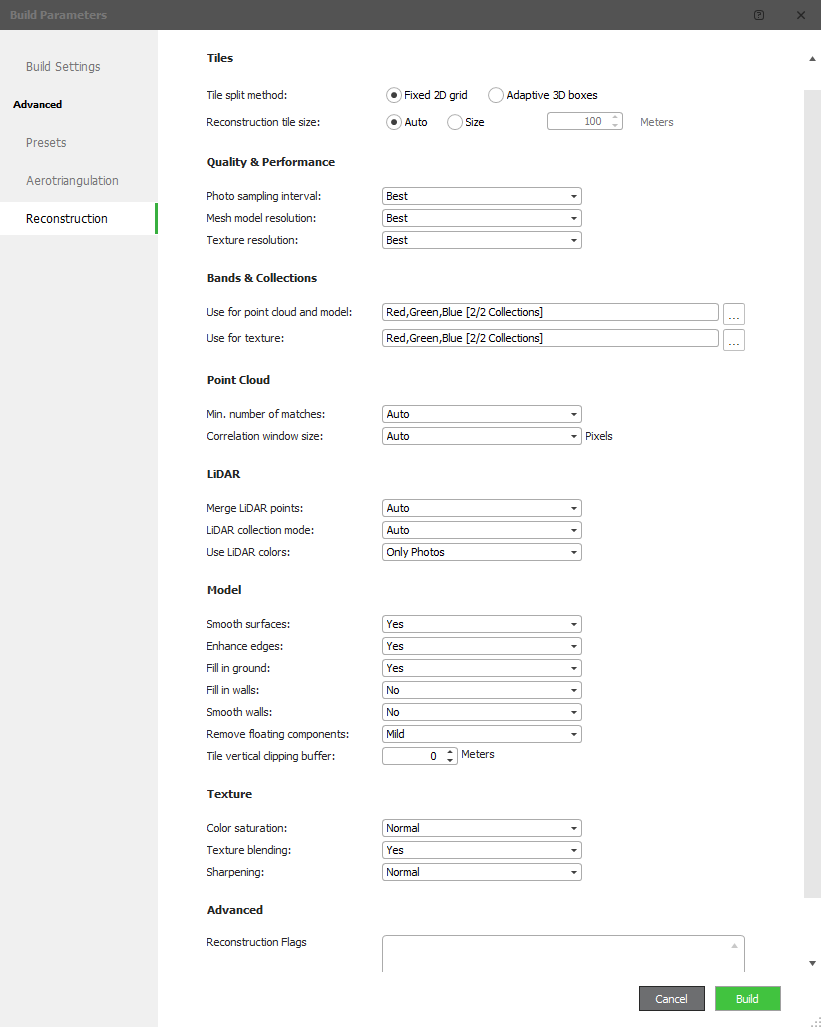
Set the reconstruction parameters based on the following considerations and then select Build:
Table . Reconstruction Parameters.
| Reconstruction Parameters | Description |
|---|---|
| Tile Split Method. | For structured nadir and oblique captures, it is best to use the fixed 2D grid option. For complex close-range aerial captures that require division of the reconstruction tiles vertically, use the Adaptive 3D boxes options. |
| Reconstruction Tile Size. | Generally, the recommendation is to have PhotoMesh automatically determine the optimal tile size. However, if it is not suitable, a tile size in meters can be specified. A manual tile size cannot be used for the Adaptive 3D boxes option. |
| Point Sampling Interval. | The image resolution in which correlated points are extracted. |
| Mesh Model Resolution. | If simplification of the mesh is required to optimise file size and model draw times for complex geometry. Lower resolutions can be used to reduce the file size. |
| Texture Resolution | The photo resolution used to texture the model. Lower resolutions can be used to reduce the file size. |
| Minimum Number of Matches. | The minimum number of image matches that is required to generate each 3D point. A minimum of two points is required, however, 3D points generated from 2 matches are generally considered unreliable. Where there is high overlap or noise, the value can be increased. When using auto mode, PhotoMesh will use 3 matches by default and dynamically adjust when required. Points generated from 2 matches will only be used in area where there is insufficient data. |
| Correlation Window Size. | The window size in which 3D points are correlated from the images. In environments where points may be more difficult to correlate, the correlation window size can be increased. For example, a rural field versus an urban environment. When using the auto mode, PhotoMesh will use a correlation window size of 7. The correlation window size is dynamically increased when required. |
| LiDAR. | If any LiDAR data is to be processed. |
| Model Settings. | If any smoothing, enhance edges, void filling or floating components removal is required. |
| Texturing Settings. | colour saturation, texture blending and sharpening. |
| Flags | Reconstruction customisation flags. |
To read more on the advanced build settings, refer to: Setting Build Parameters – Advanced Settings (skylinesoft.com) in the PhotoMesh user manual.
The Build Manager and Launching PhotoMesh Fusers
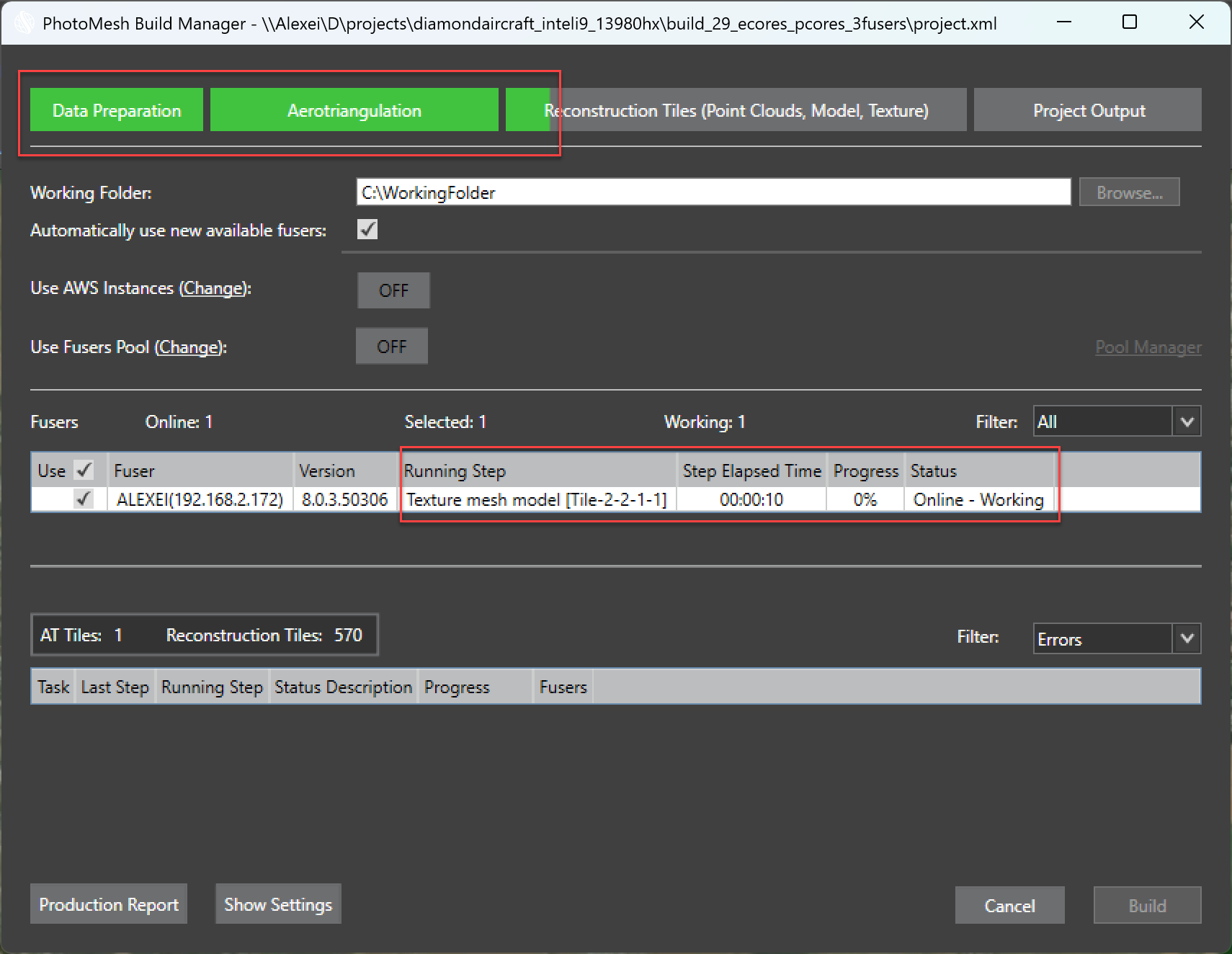
The build manager is used for monitoring the current build. The build manager displays status information for the aero-triangulation and reconstruction tiles.
Once build has been selected, a prompt will appear to enter the build description.
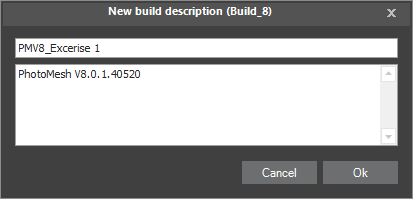
- Enter the build name and description.
- Once the build description has been entered, the build manager will be displayed as shown below.
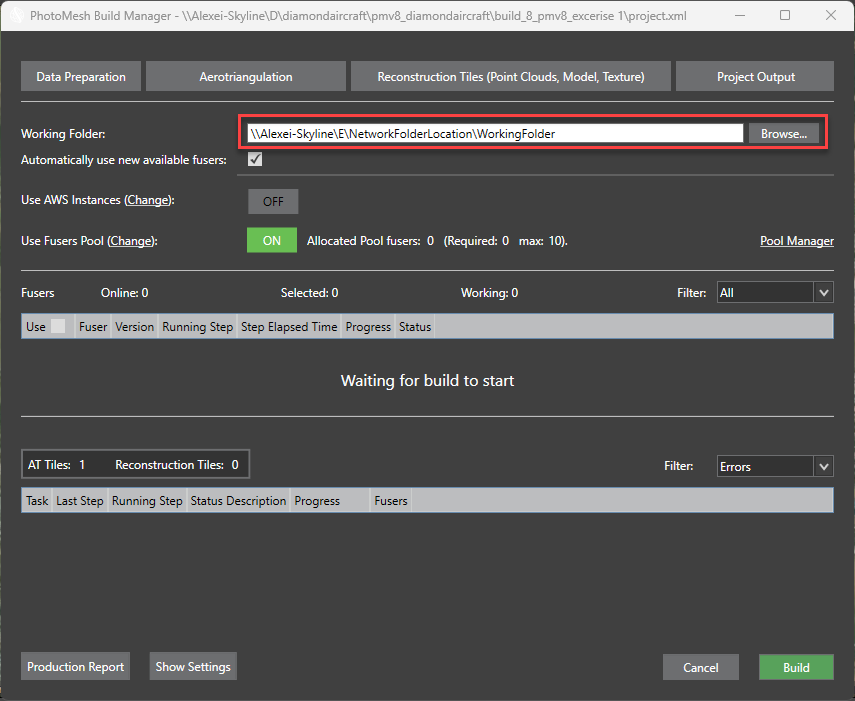
Check the following before starting to build the project:
- Check and set the working folder If it were not previously configured in the PhotoMesh settings. The working folder should be located on a network drive visible to all clients. If you are only processing data locally (no network fusers), then you can use the default working folder location C:\Users\UserAccount\AppData\Local\Temp.
- Ensure that ‘Automatically use new available fusers’ is checked.
If you observe that there are no fusers displayed, this is due to the following reasons.
- The PhotoMesh fuser has not been launched.
- The working folder in the PhotoMesh fuser application does not match the working folder set in the build manager.
- You are using the PhotoMesh Fuser Pool, where fusers will only join the build once called upon by the build manager.
In most cases, the build manager does not show any available fusers because no fusers are currently running.
Launching PhotoMesh Fusers from the Build Manager
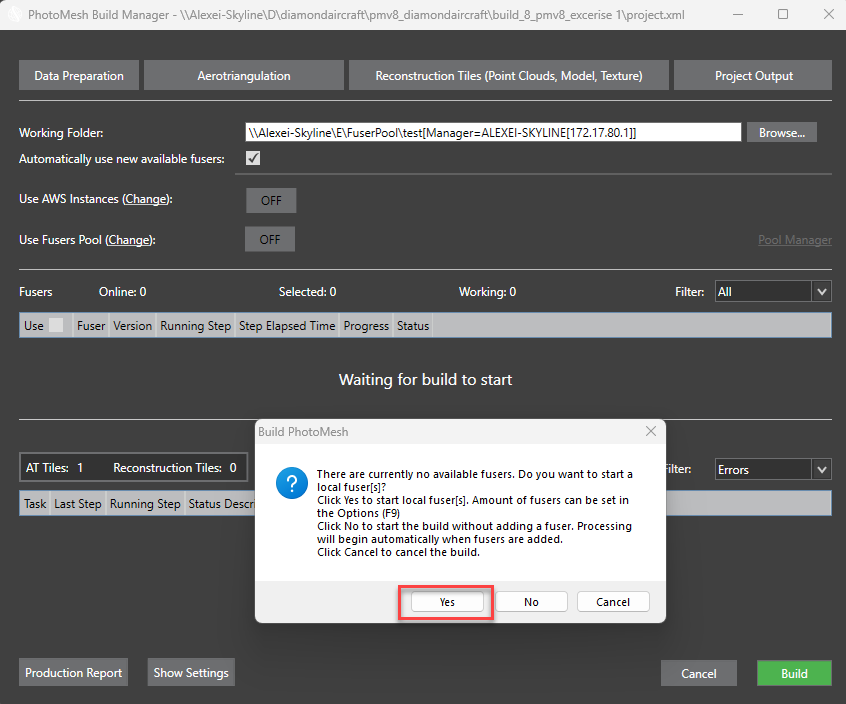
When a build is started and no PhotoMesh Fusers are detected, the build manager will prompt the user: ‘There are currently no available fusers. Do you want to start a local fuser(s)?’ Select yes to automatically launch the local PhotoMesh Fusers.The fusers working folder will be automatically set to working folder set in the build manager or the project options (F9).
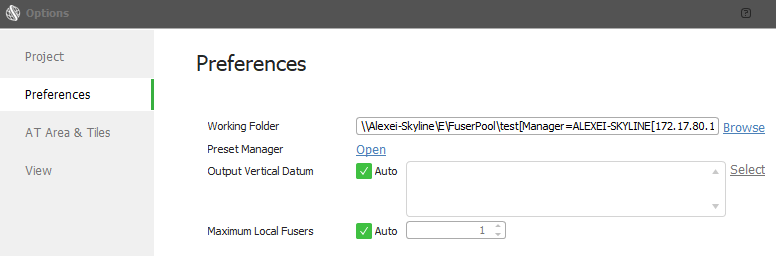
Within the PhotoMesh project options, the ‘Maximum Local Fusers’ parameter determines how many local Fuser instances are initiated. When the Auto checkbox is ticked, PhotoMesh will automatically determine how many PhotoMesh fusers should be launched based on the computers available RAM. Alternatively, any number of fusers can be specified.
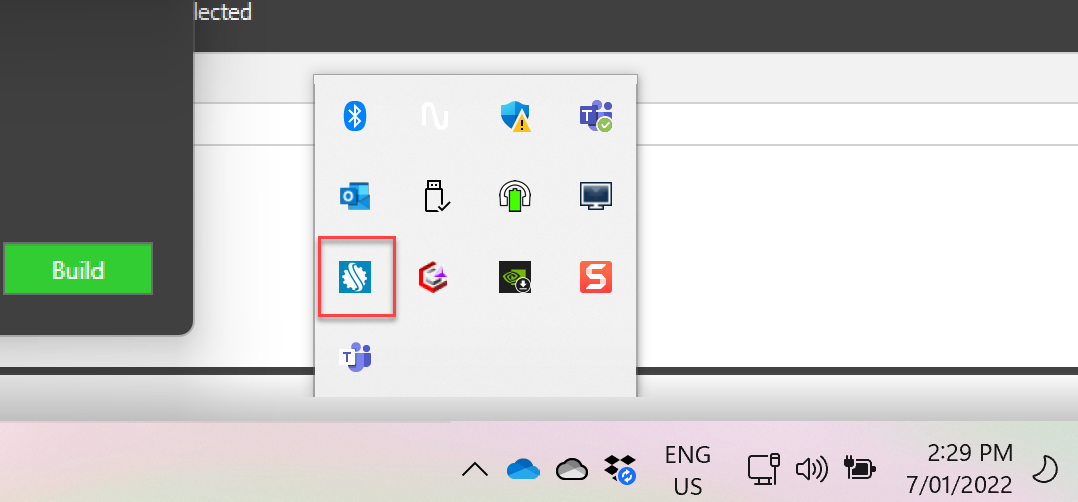
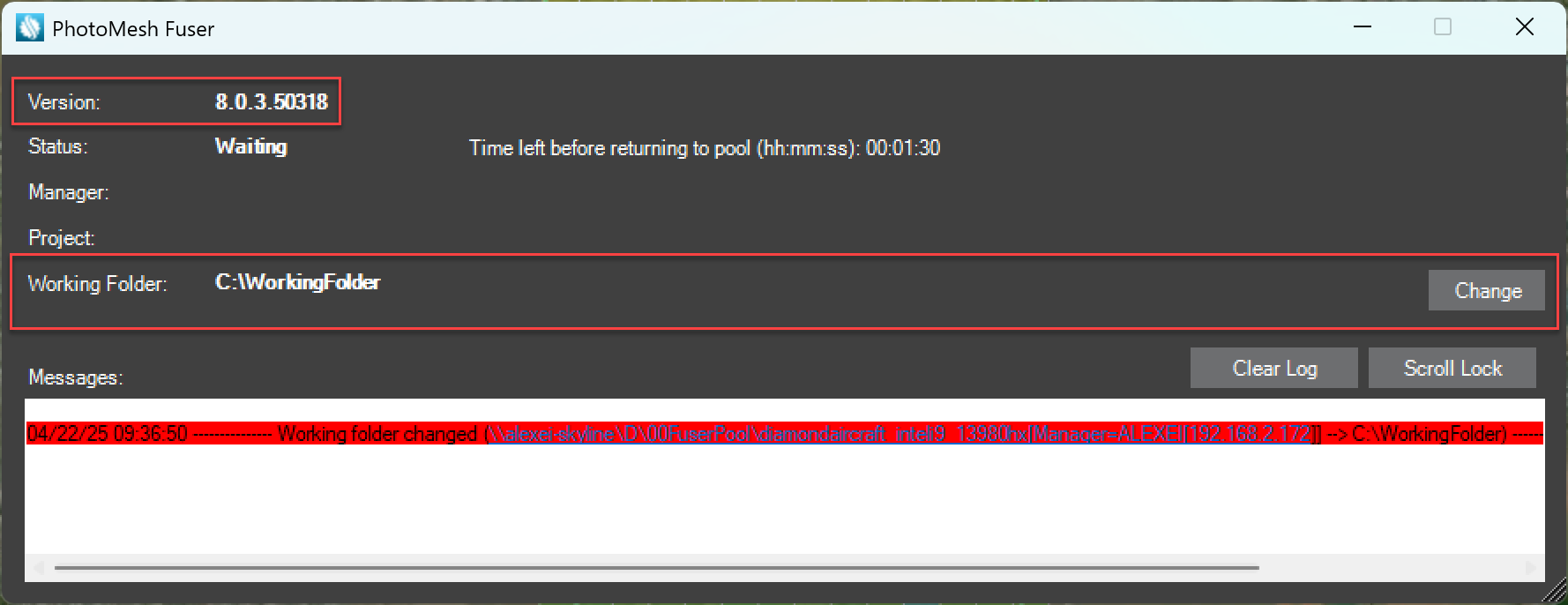
When the PhotoMesh fuser application is operational, it will appear in the system tray, located in the windows task bar. The PhotoMesh fuser application can be opened by double clicking the icon.
The PhotoMesh fuser application, provides information regarding the fuser’s status.
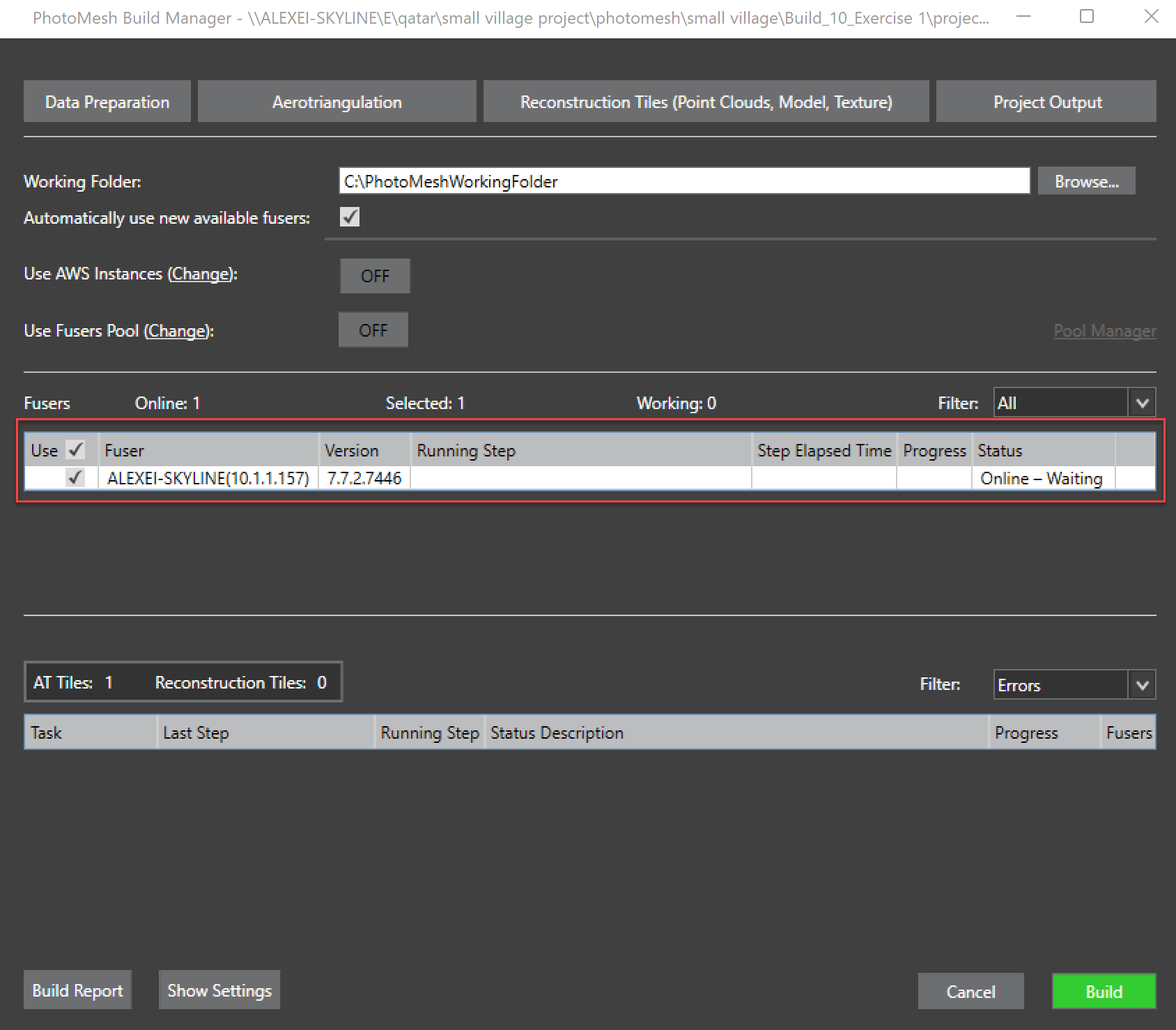
When fusers have been successfully launched and correctly set, they should appear in the build manager as shown below. The status of the fuser highlights that the fuser is online and waiting. The build can then be started.
The build manager is monitoring and providing information regarding the current build.
Launching fuser components from command prompt
Multiple instances of the PhotoMesh fuser application can also be manually launched on a single computer from command prompt.
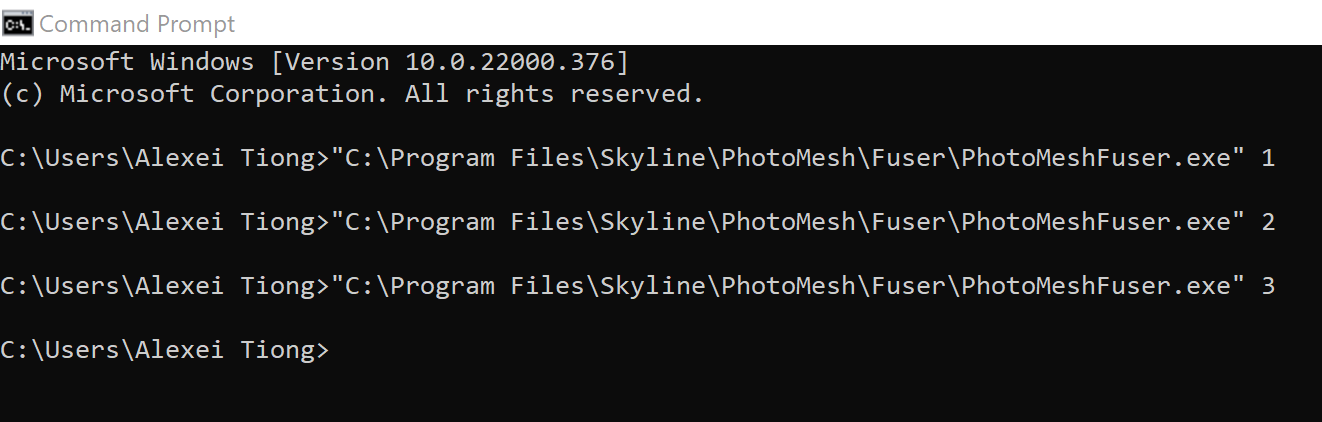
To launch additional fusers, in command prompt, type the fuser applications file path, followed by an index number, in the command line, as shown below.
"C:\Program Files\Skyline\PhotoMesh\Fuser\PhotoMeshFuser.exe" 1
"C:\Program Files\Skyline\PhotoMesh\Fuser\PhotoMeshFuser.exe" 2
"C:\Program Files\Skyline\PhotoMesh\Fuser\PhotoMeshFuser.exe" 3
Once the fusers have been successfully launched, the status of the additional fusers will appear in the build manager.
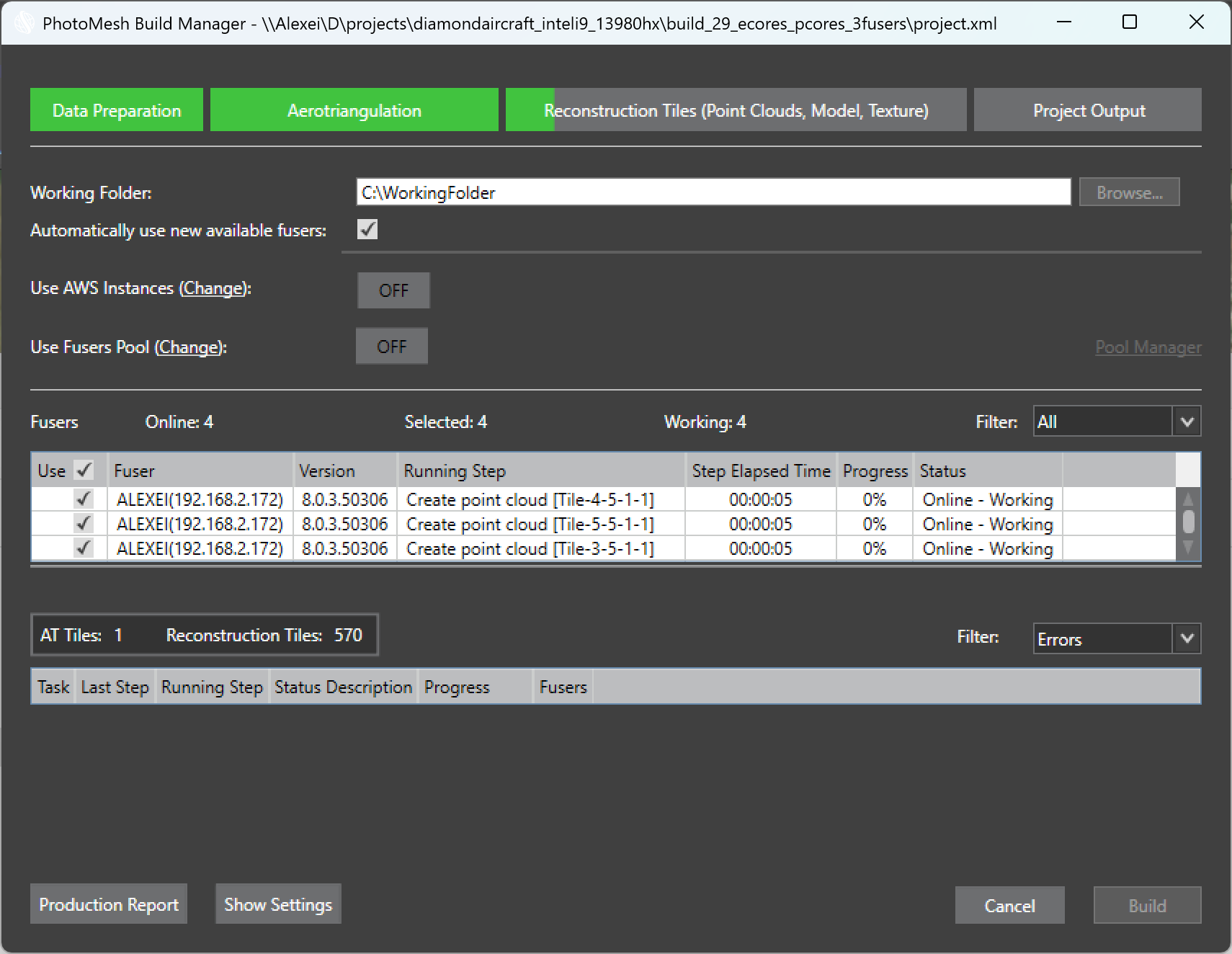
Refer to chapter 14, Fusers, Launching Multiple Fusers of the user manual, ‘About Fusers’ through to ‘Launching Multiple Fuser’ for more information.
Reviewing Tiles During and after the Build
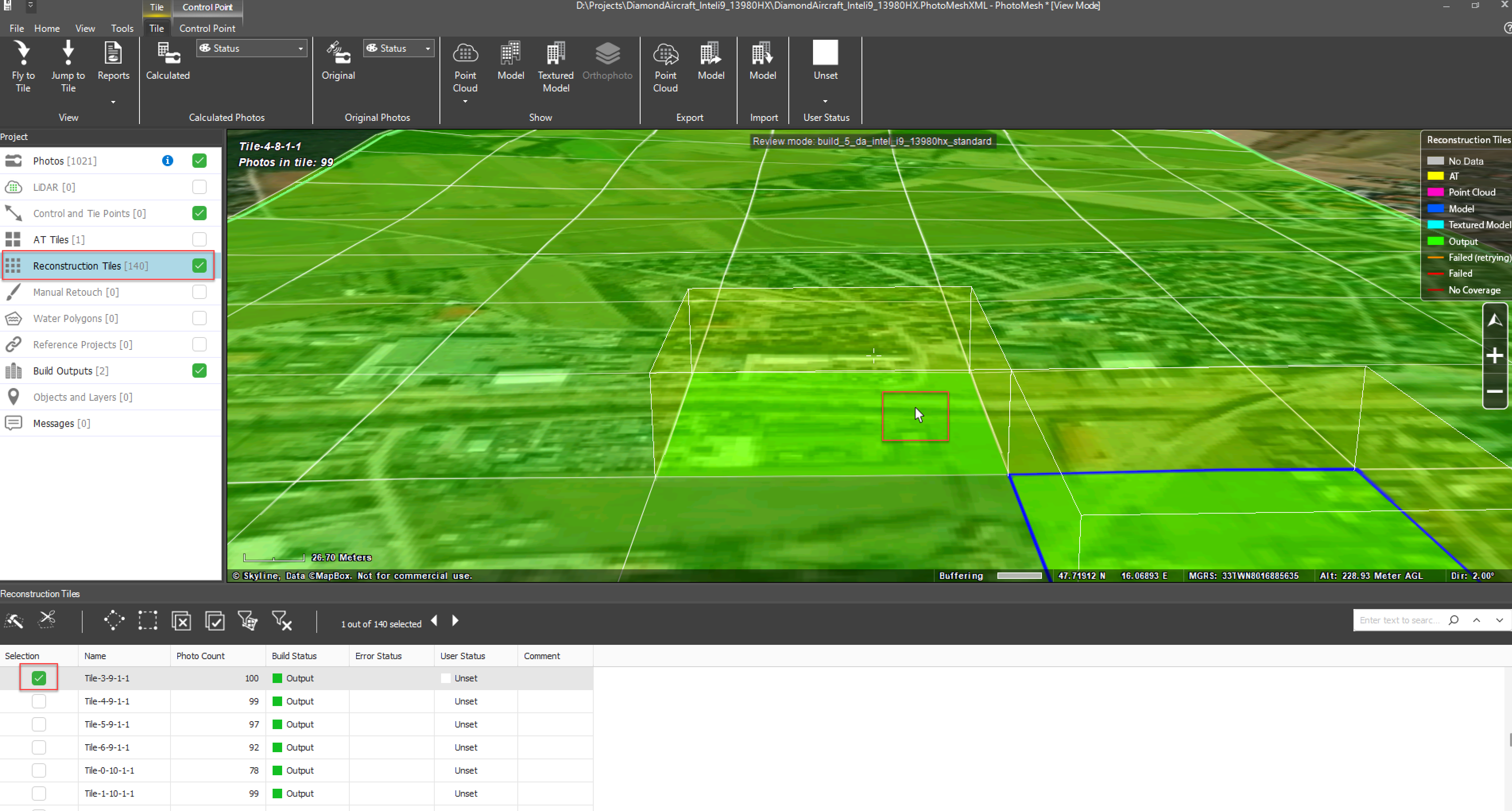
Individual reconstruction tiles and AT tiles can be reviewed during and after the build. This can be useful for identifying any issues with the tile reconstruction before extensive time has been spent on the project.
Refer to Chapter 17, Reviewing your build, About Reviewing Your Build of the user manual.
- From the home tab, select the ‘Reconstruction Tiles’ as shown below. Reconstruction tiles can also be selected from the 3D viewer window or from the Reconstruction tile table.
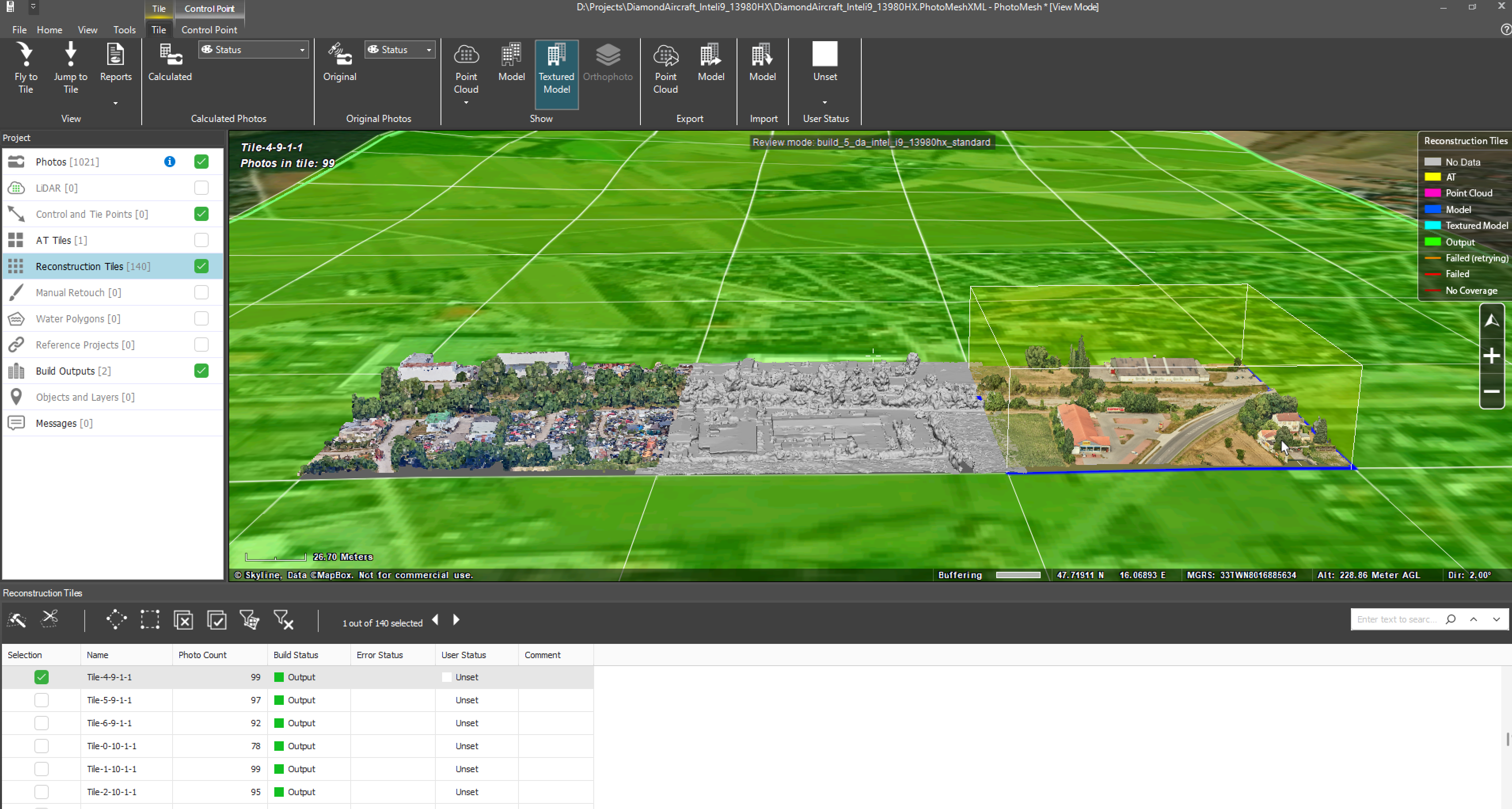
- Select any of the tiles to preview the result of the completed build steps. Within the tile ribbon, select either the Point Cloud, Model, Textured Model or Orthophoto icons.
Reviewing the Aerotriangulation and Build Reports
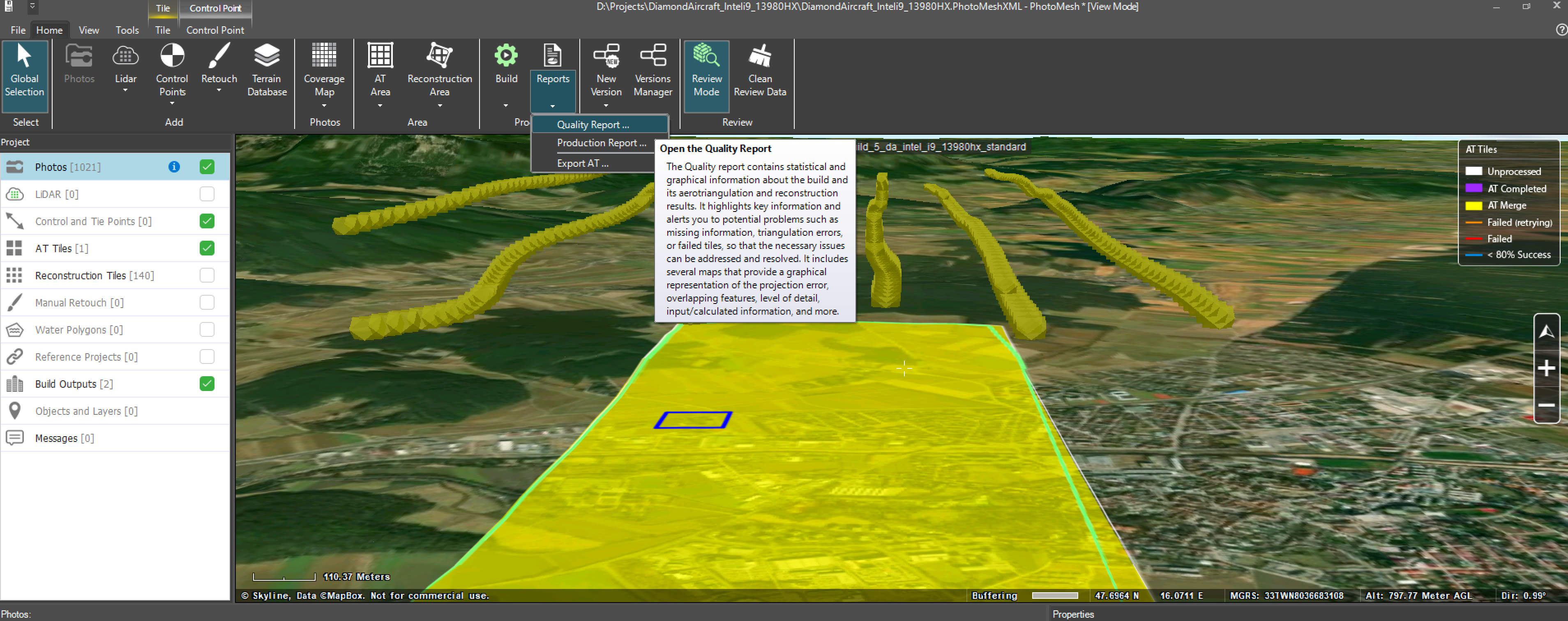
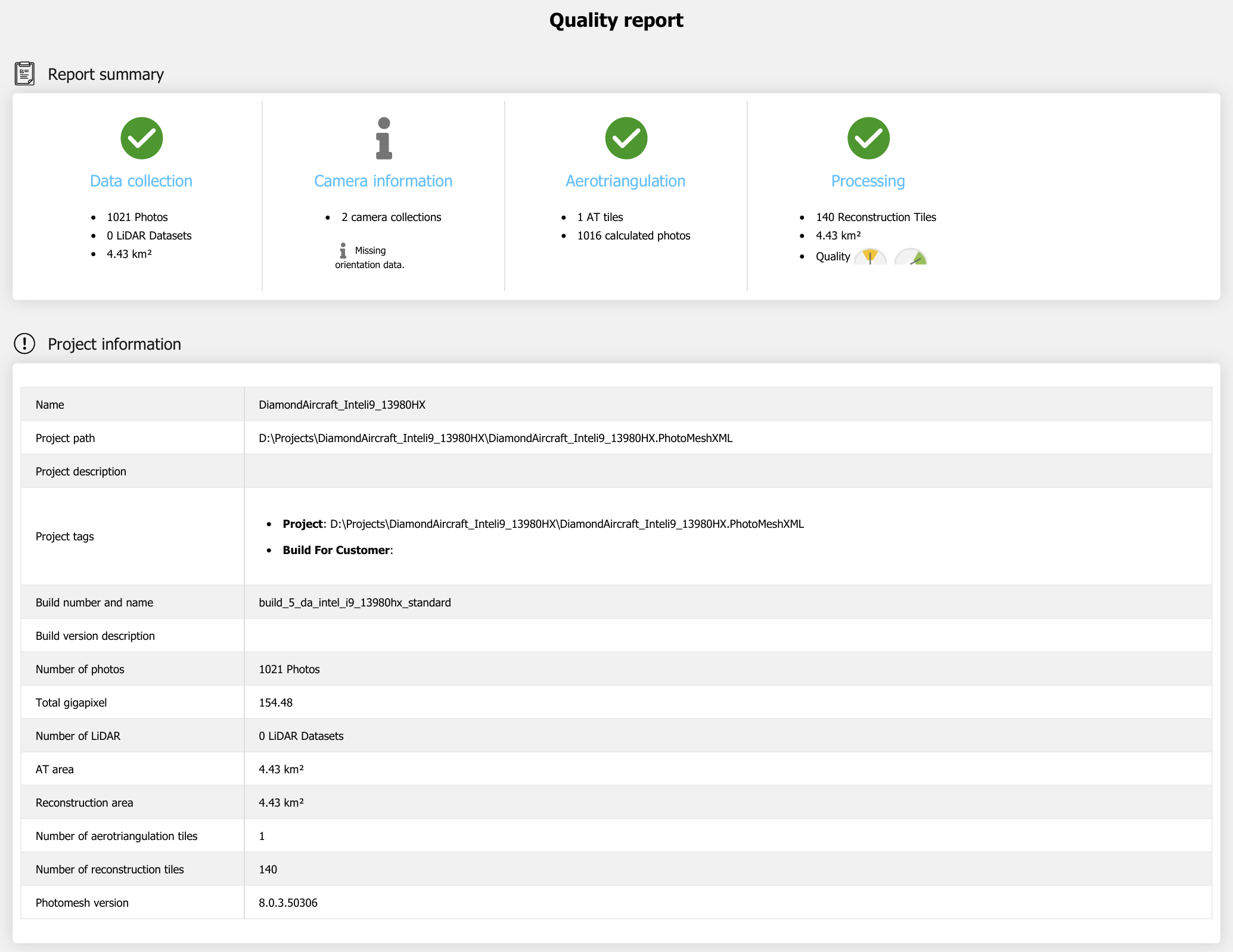
- Within the home tab ribbon, select the Reports drop down icon and then select Quality report. The Quality Report contains summary information of the aerotriangulation results
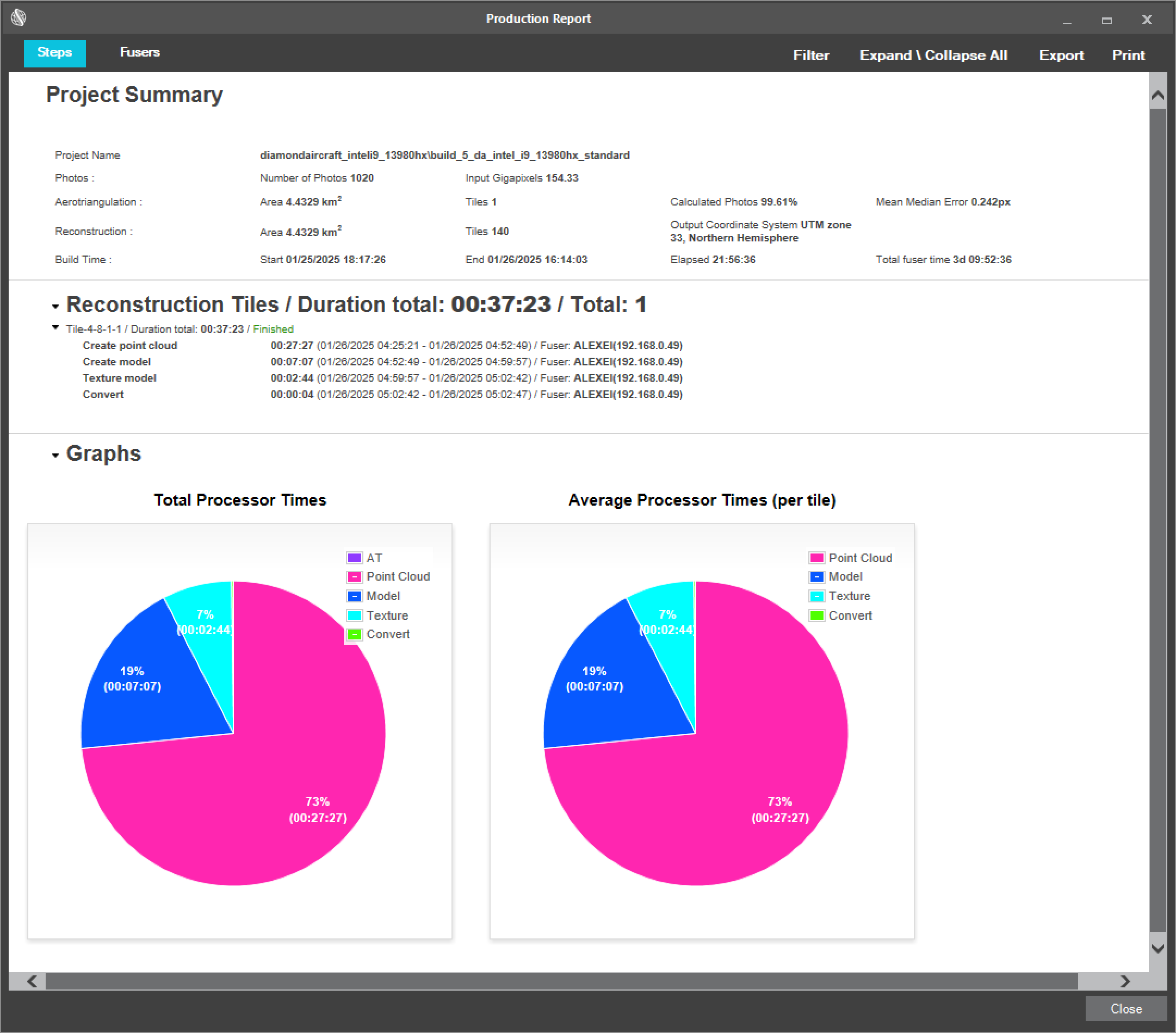
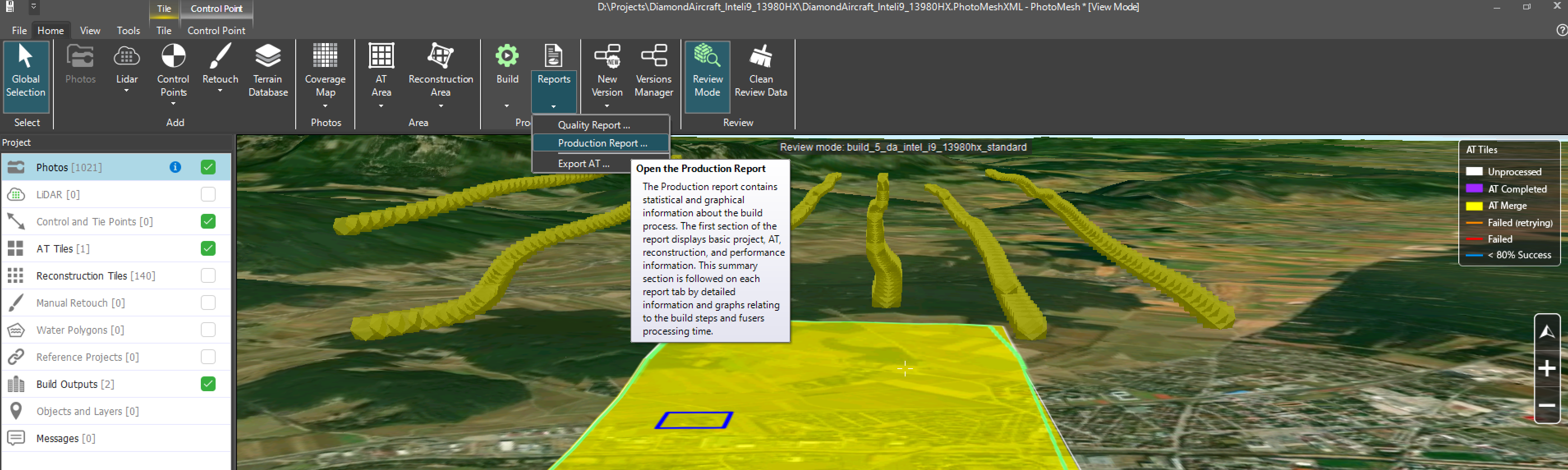
- To view statistical information about the build process, select the Production Report, from the Reports drop down list.
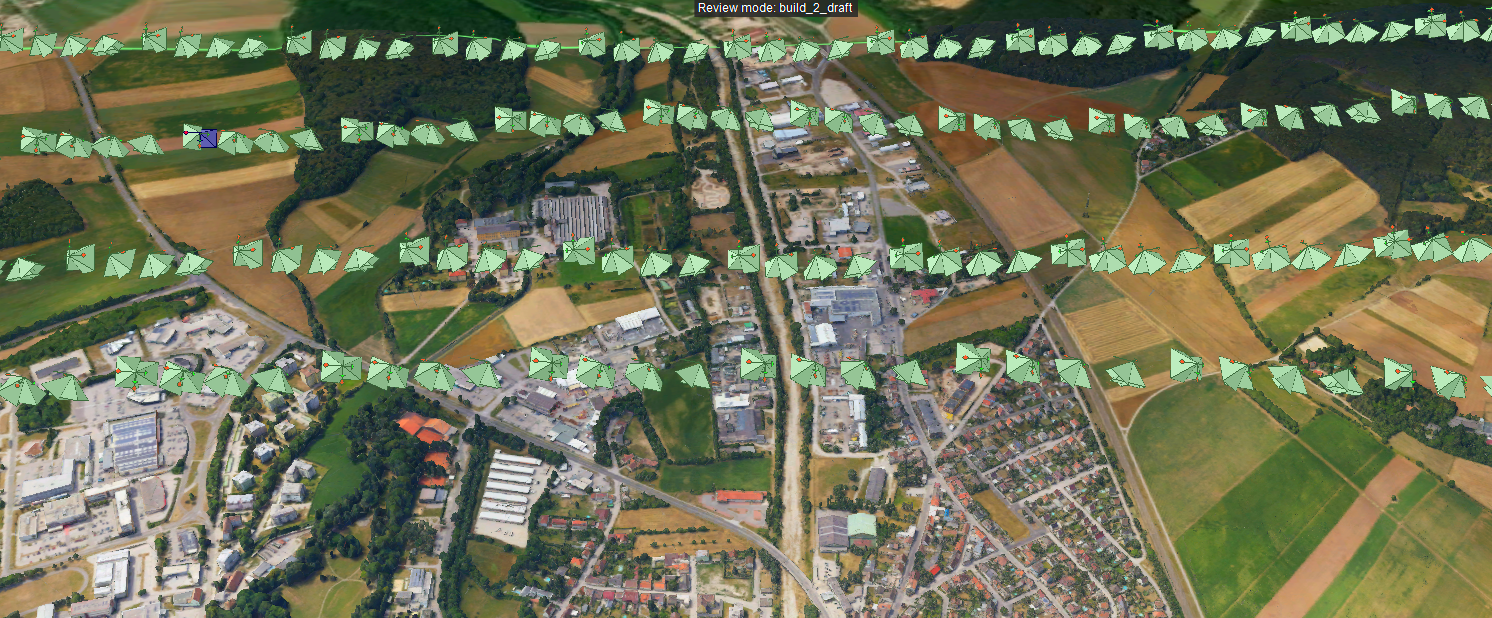
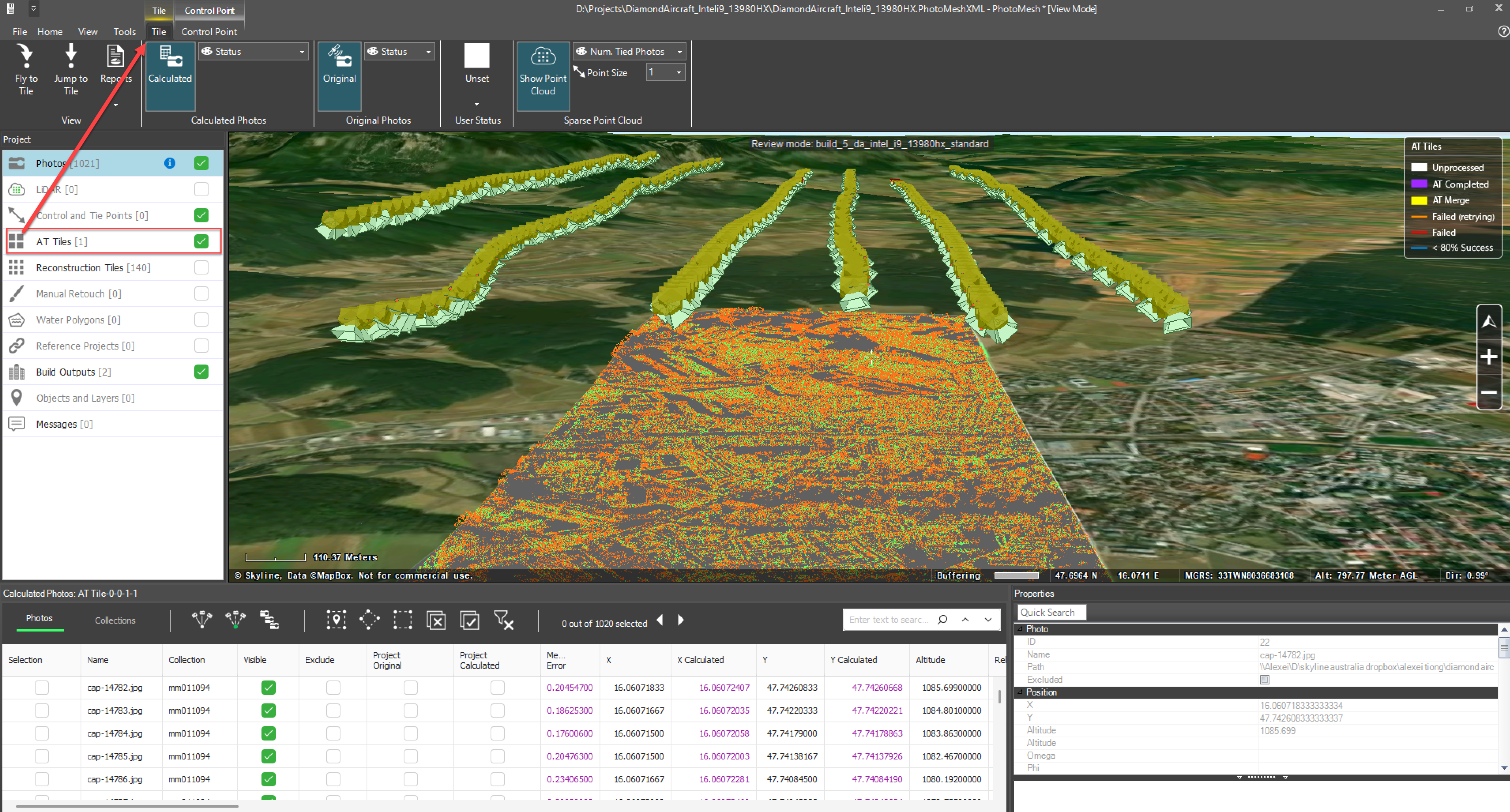
- In the 3D viewer, you can also visually inspect the AT resulted by comparing the calculated image positions and sparse point cloud.
Review the build report for individual reconstruction tiles
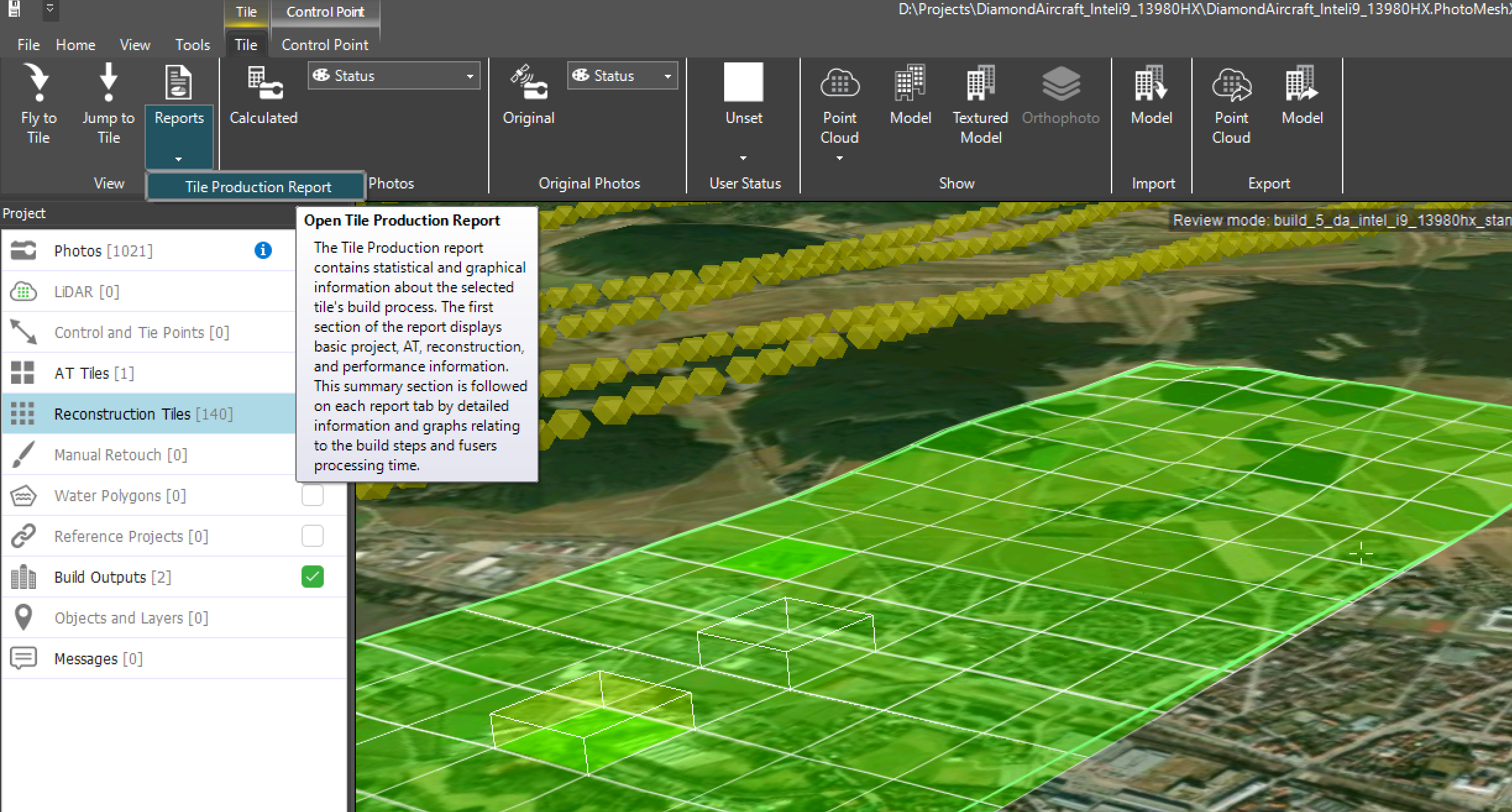
Select any reconstruction tile in the project. Within the tile tab, Reports and then the Tile Production Report. This allows you to review statistical information for each individual reconstruction tiles build process.
Shown below, is the statistical information that is provided for each reconstruction tile.