Introduction
This document provides the basic information to get started in creating 3D Gaussian Splatting models using PhotoMesh. Gaussian Splatting is a 3D reconstruction and rendering technique that represents a scene using many small volumetric primitives called Gaussian splats. Each splat stores a 3D position, size, orientation, colour, opacity, and shape information. During viewing, these splats are projected onto the screen and blended together to form a realistic image of the scene. Unlike a traditional textured mesh, which uses connected triangles and image textures, Gaussian Splatting represents the scene as a dense collection of semi-transparent elements that can reproduce fine visual detail and view-dependent appearance from the original photographs.
Review the user manuals (About PhotoMesh (skylinesoft.com)) and the knowledge base articles (https://support.skylinesoft.com/hc/en-us/categories/360002453079-PhotoMesh) from the support centre for additional information.
List of Commonly Used Abbreviations
AOI – Area of Interest.
AT – Aero-triangulation.
DGPS – Differential Global Positioning System.
DSM – Digital Surface Model.
DTM – Digital Terrain Model.
ENU – East-North-Up.
EXIF – Exchangeable Image File.
Fuser – A PhotoMesh processing worker.
GCP – Ground Control Point.
GPS – Global Positioning System.
GNNS – Global Navigation Satellite System.
GUI – Graphical User Interface.
INS – Inertial Navigation System.
LAS – Laser Open File Format.
LiDAR – Light Detection and Ranging.
MSL – Mean Sea Level.
PPK – Post Processing Kinematic.
RMS – Root Mean Square.
SKFI – Internal PhotoMesh Feature Files
SMPT – The PhotoMesh Internal Image Format
UTM – Universal Transverse Mercator.
XML – Extensible Markup Language.
Glossary
Exterior Orientation (Extrinsic Variables). The exact location of the cameras focal point in x, y, z coordinates and its orientation expressed as ω, φ, κ (omega, phi, kappa), or yaw, pitch, roll, at the time of image capture.
Interior Orientation (Intrinsic Variables). The internal geometry of the camera system at the time of image capture, defined by the focal length, principal point, and lens distortion co-efficient variables (k1, k2, k3, p1, p2).
Field of View. A function of focal length and image sensor size.
Fuser. The working component used in PhotoMesh to perform processing tasks.
Focal Length. The distance in millimetres, between the centre of the camera lens to its focal plane, defining magnification and light ray angles.
Gaussian Splatting: Gaussian Splatting converts overlapping photographs into an interactive 3D scene represented by millions of small coloured splats.
Principal Point. The interception between the optical axis of the lens and the sensor plane in pixels. Often expressed as cx and cy. Calculation of the principal point is important for considering the decentring effect of the lens, caused by radial/tangential distortion and the manufacturing of the camera system.
Radial Distortion. Modelled by the coefficients k1, k2, k3 and k4 describe the radial distortion curve, where the points of an image are displaced due to the lens characteristics, with close relation to the calibrated focal length. Radial distortion is when light ray bend further around the edges of the lens than what is observed at the optical centre. Radial distortion is classified as negative radial distortion (pincushion) and positive radial distortion (barrel).
Tangential Distortion. Occurs when the lens and image is not parallel. The tangential distortion coefficients p1 and p2 model this distortion.
PhotoMesh Components
PhotoMesh consists of two main components. The first component is the GUI interface, also known as the editor, allows the user interacts with the software. The second component is the PhotoMesh fuser application, which performs all the processing tasks. (PhotoMesh Components (skylinesoft.com)).
The PhotoMesh application, is installed on the main computer (referred to as the master computer), and is used to prepare, submit, process, monitor, and review the entire PhotoMesh project.
- The PhotoMesh Build Manager is launched from the PhotoMesh GUI. The Build Manager is used for managing and monitoring the PhotoMesh project. The PhotoMesh Build Manager keeps track of all current and completed build tasks. The Build Manager also distributes and assigns all the processing tasks to the PhotoMesh fusers.
The PhotoMesh Fuser is the worker component of PhotoMesh. The Fuser component allows you to distribute the processing workload between many computers within network. Multiple PhotoMesh Fusers can be launched on a single computer to fully utilise the CPU processing capacity.
- The PhotoMesh Fuser Working/Pool Folder is a network folder in which the PhotoMesh fusers on the master and client computers communicate. The Working/Pool folder is used to communicate and share information. For example, collecting and depositing pending tasks and updating fuser availability, status and progression.
Getting Started Installing PhotoMesh
To get started, download the PhotoMesh installer from your SkylineGlobe Server Cloud account or from the following Dropbox link:
PhotoMesh V810.60330:
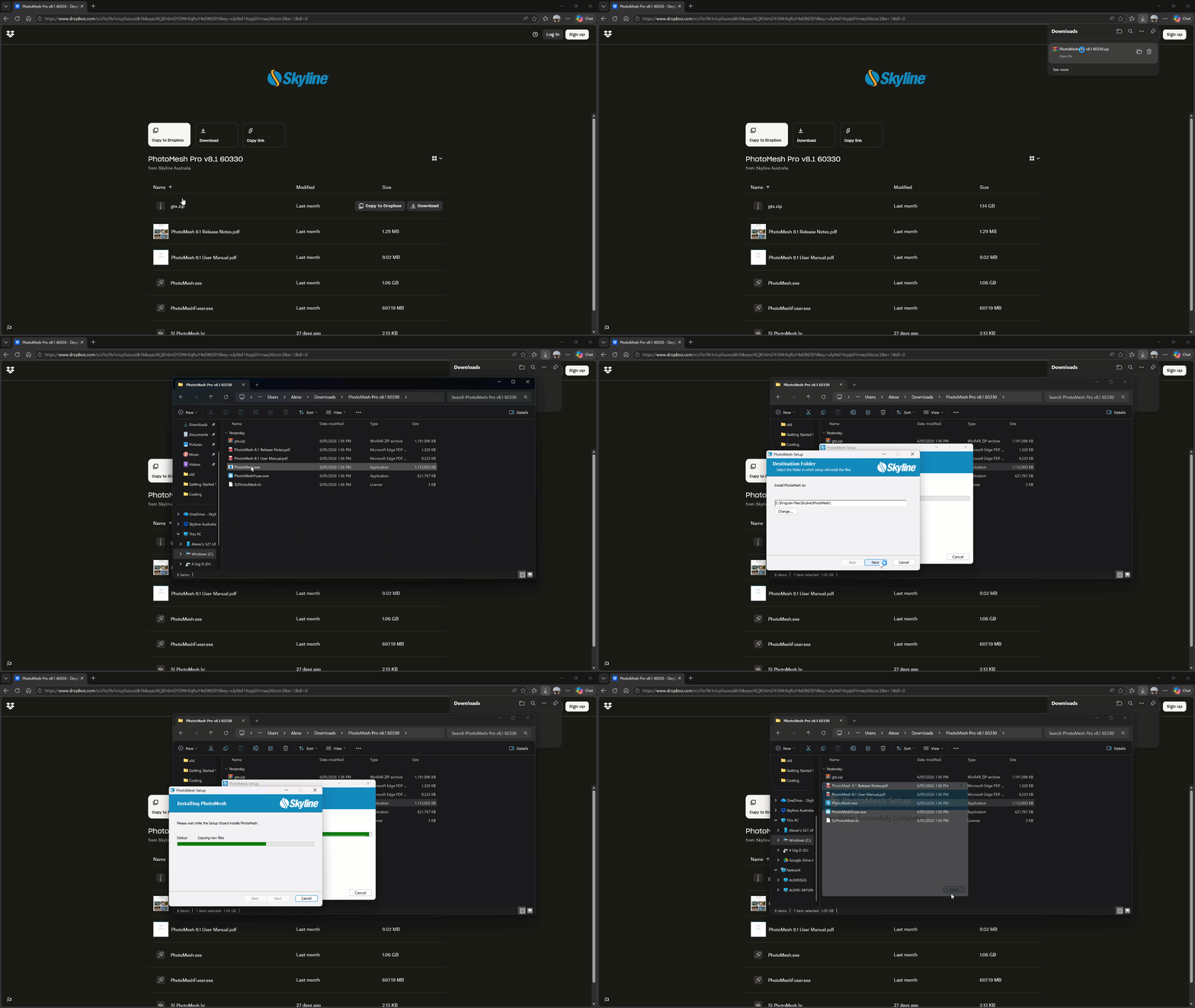
- Unzip the PhotoMesh installer package.
- Run the PhotoMesh.exe installer. Ensure that the SLPhotoMesh.lic file and gtx.zip is located within the same folder directory.
- Follow the instructions from the installation wizard.
- Install PhotoMesh in the default location of C:\Program Files\Skyline\PhotoMesh or a custom location.
The installation process should take approximately 5 minutes.
Installing the Gaussian Splatting Fuser DLL Files.
To enable PhotoMesh to process Gaussian Splatting models, additional files are required. These files must be manually copied into the PhotoMesh Fuser folder before processing can begin.
- From the Dropbox link below, download the additional Gaussian Splatting Fuser files.
Gaussian Splatting Fuser Files:
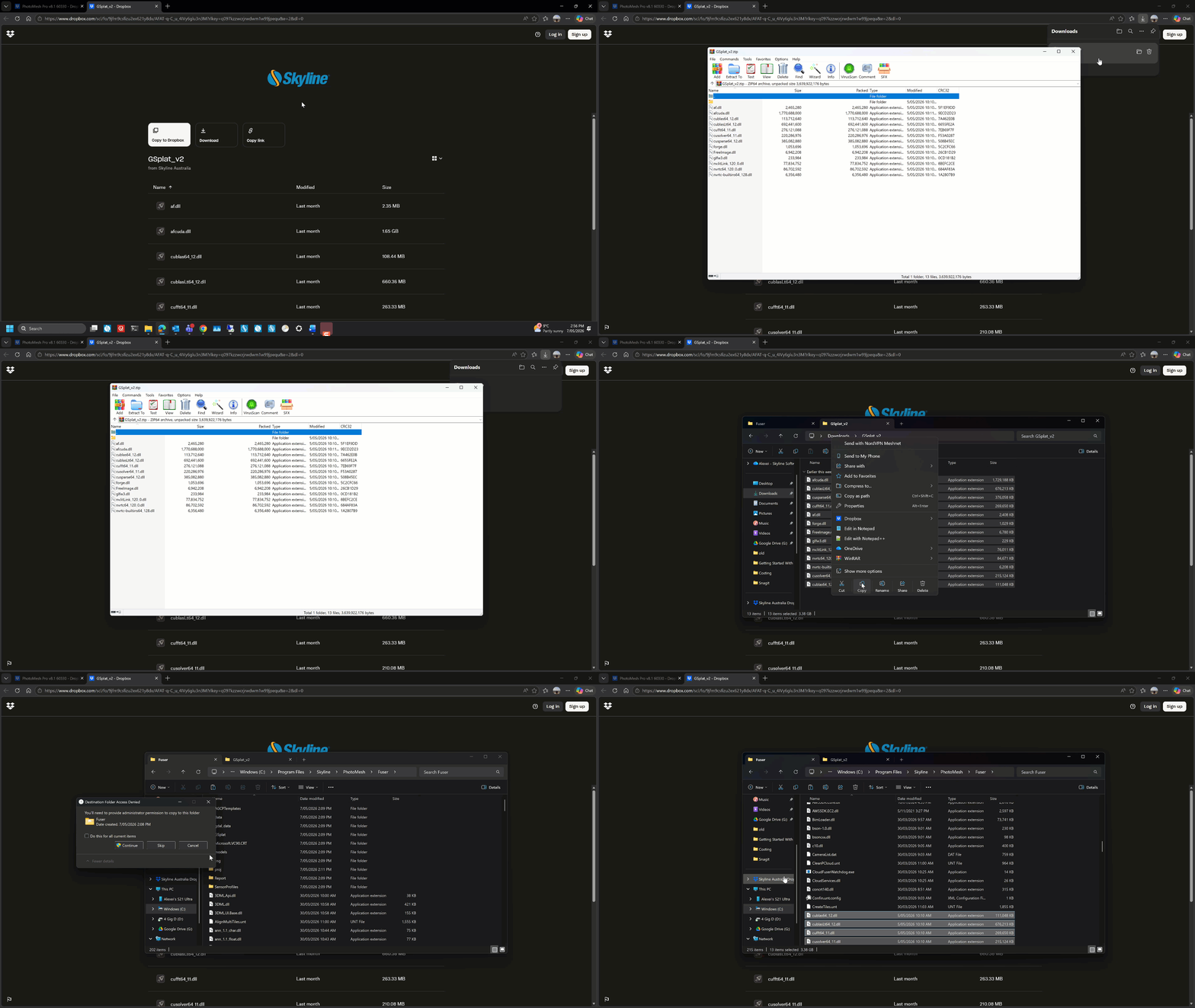
- Unzip the Gsplat_V2 package.
- Copy and paste the files from the Gsplat_V2 package into C:\Program Files\Skyline\PhotoMesh\Fuser.
Updating the Graphics Cards Drivers.
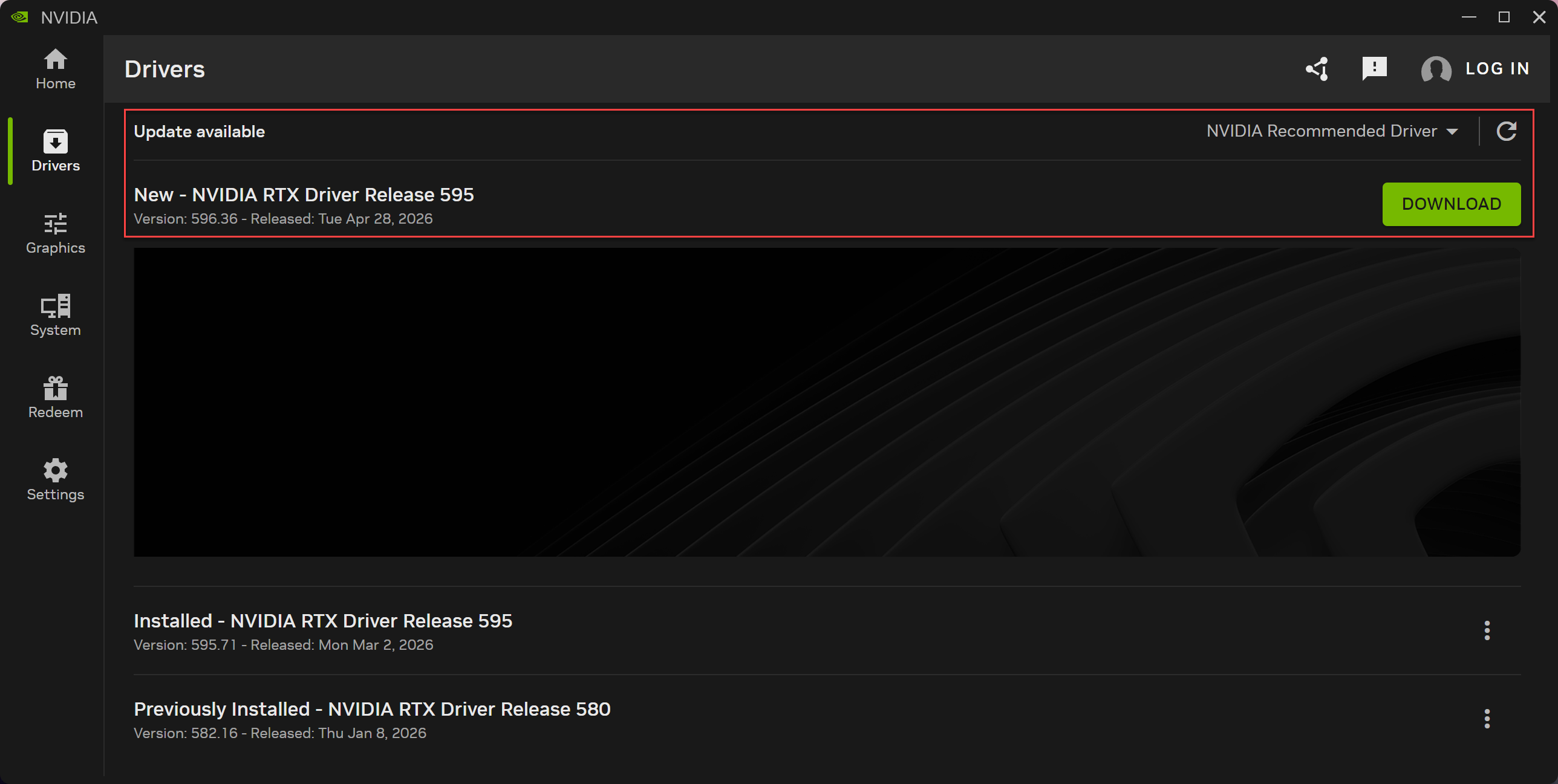
If the GPU drivers have not been updated recently, it is possible that the Gaussian Splatting task will fail due to outdated graphics drivers.
- To ensure compatibility, it is recommended to update to the most up-to-date graphics drivers.
For more general information on the PhotoMesh installation, review the sections from the user manual outlined below.
- Software and Hardware Requirements (Master/Fuser Computer) (skylinesoft.com).
- License Mechanism for PhotoMesh (skylinesoft.com)
- PhotoMesh License Options (skylinesoft.com)
- Installing PhotoMesh (skylinesoft.com)\
- Silent Installation of PhotoMesh (skylinesoft.com)
- Configuring PhotoMesh to Use the Skyline Floating License Server (SFLS) (skylinesoft.com)
- Installing PhotoMesh Fusers (skylinesoft.com)
Exercise 1: My First PhotoMesh Project
This section will demonstrate how to create a new project and process input images into the 3D Gaussian Splatting model.
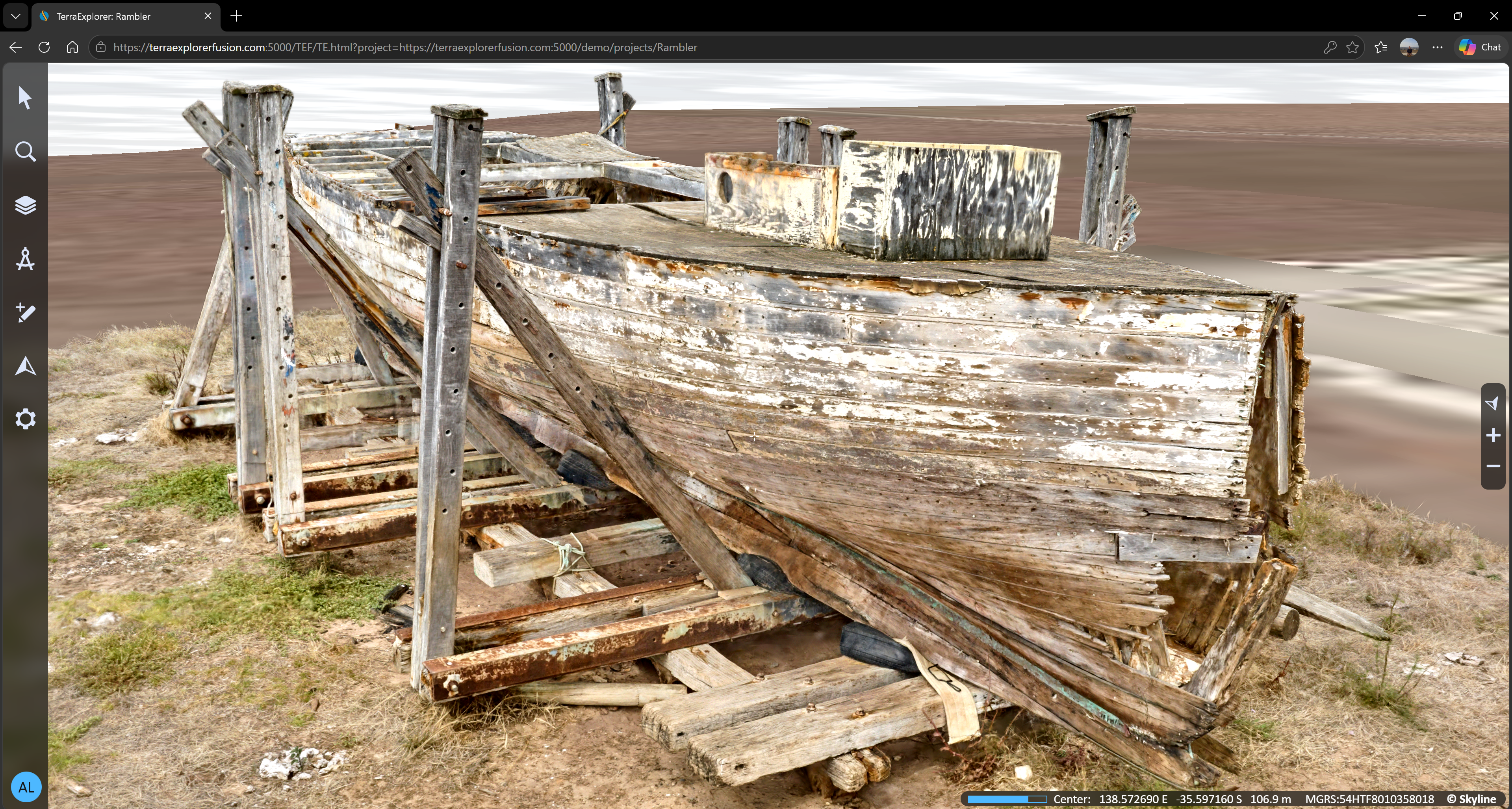
Creating a New Project
Start PhotoMesh by clicking the PhotoMesh.exe desktop shortcut icon or by clicking Start > type PhotoMesh > select the PhotoMesh.exe icon. When PhotoMesh launches, the start page will be displayed.
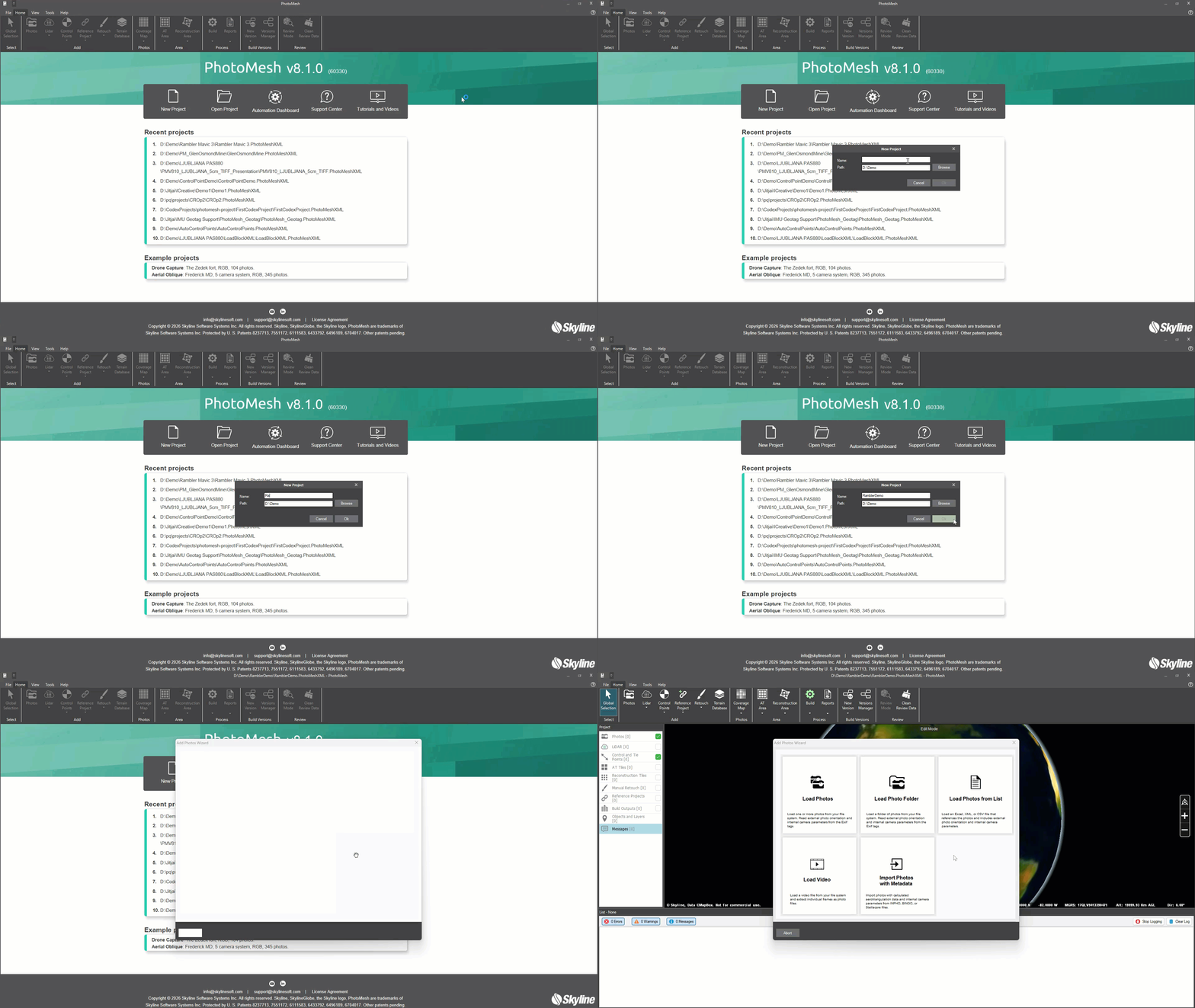
- Select ‘New Project’ from the home page.
The ‘New Project’ dialog box will appear.
- Enter the name and the file path for the project (UNC path for networked systems).
Set the path to a network folder location if additional network computers will be used for the PhotoMesh processing. Alternatively, if the Path is set to a local hard drive on the master computer, ensure that all network client computers have read and write access.
Refer to Creating and Opening a PhotoMesh Project (skylinesoft.com) in the PhotoMesh user manual.
Importing Photos into the Project
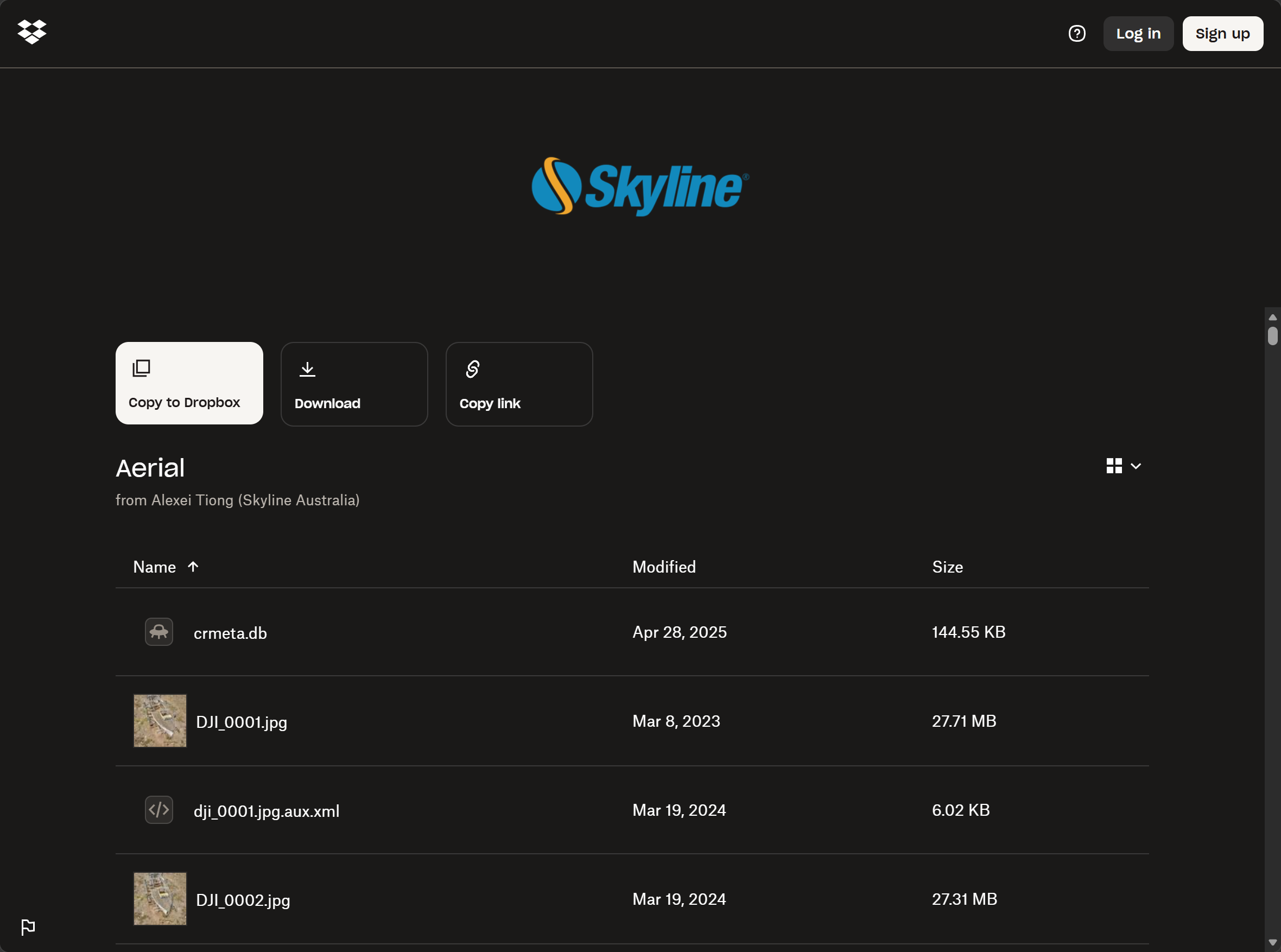
For this demo, download the sample data from the Dropbox link below.: https://www.dropbox.com/scl/fo/52vk7g5gt5qi13yf7m9lr/AIxJIJNhgOZZNb-QOYYdR50?rlkey=ob4yud0yu5hf0sw3ye83pvs8j&dl=0
The dataset consists of 325 aerial images, captured using the Mavic 3 consumer drone.
After a new project has been created in PhotoMesh, the Add Photos Wizard will be displayed. The Add Photos Wizard can also be opened by selecting the Photos button from the ribbon.
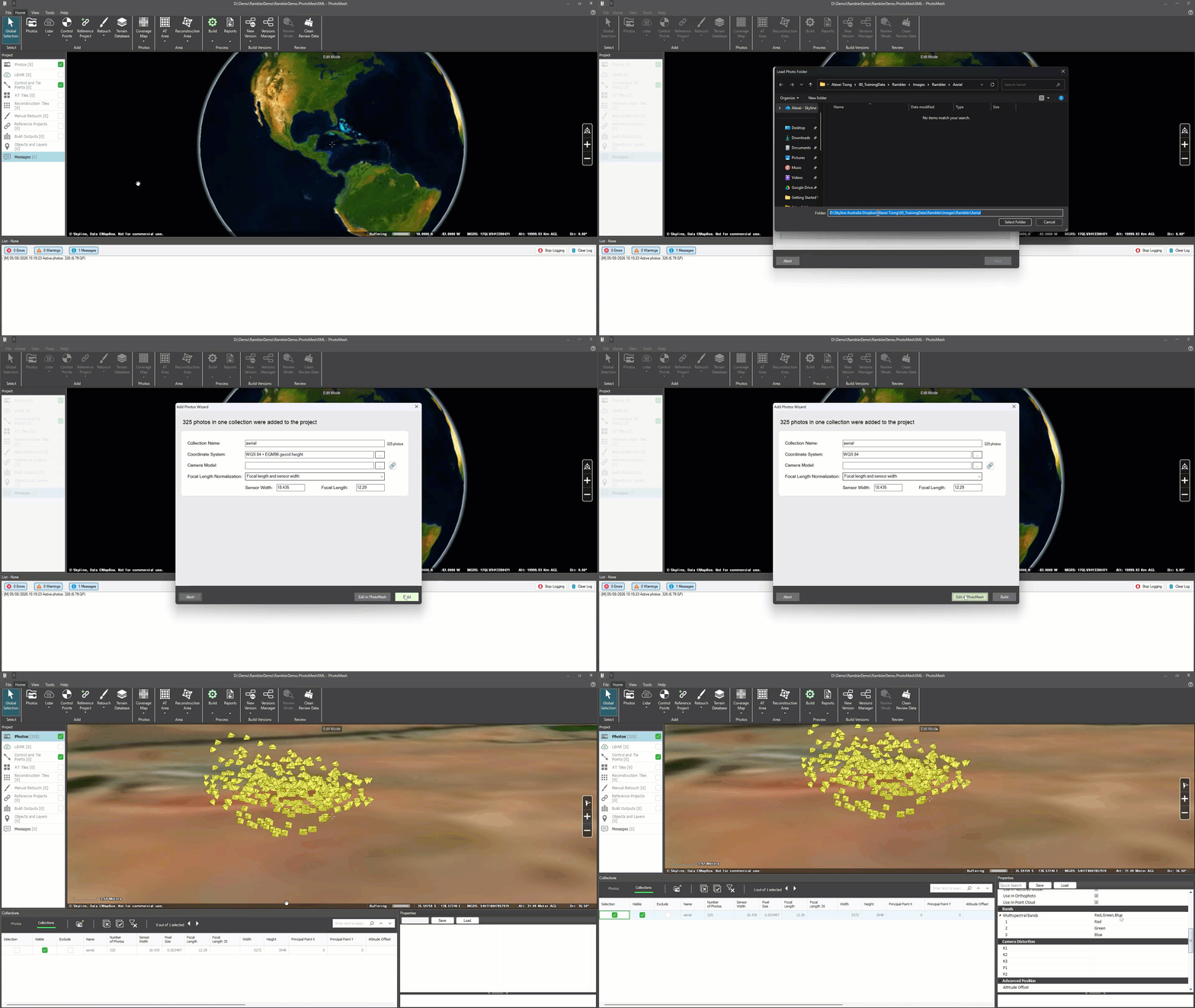
- To import the photos with embedded EXIF metadata into the project, select Photos from the ribbon, then ‘Load Photo Folder’.
- Using the file explorer window, navigate and select the folder containing the photos.
- Change the Coordinate System to WGS84 + ellipsoid. Select the three-dots to display the Coordinate System selector tool. Select or type in the EPSG code: 4326, for the WGS84 + Ellipsoid coordinate system.
- Once all the image collections have been successfully imported into the PhotoMesh project, the image collection properties can be reviewed and edited if required. Double check all the parameters and ensure that the information is correct.
- After checking the image collection metadata, change the Altitude Type from Absolute to Relative.
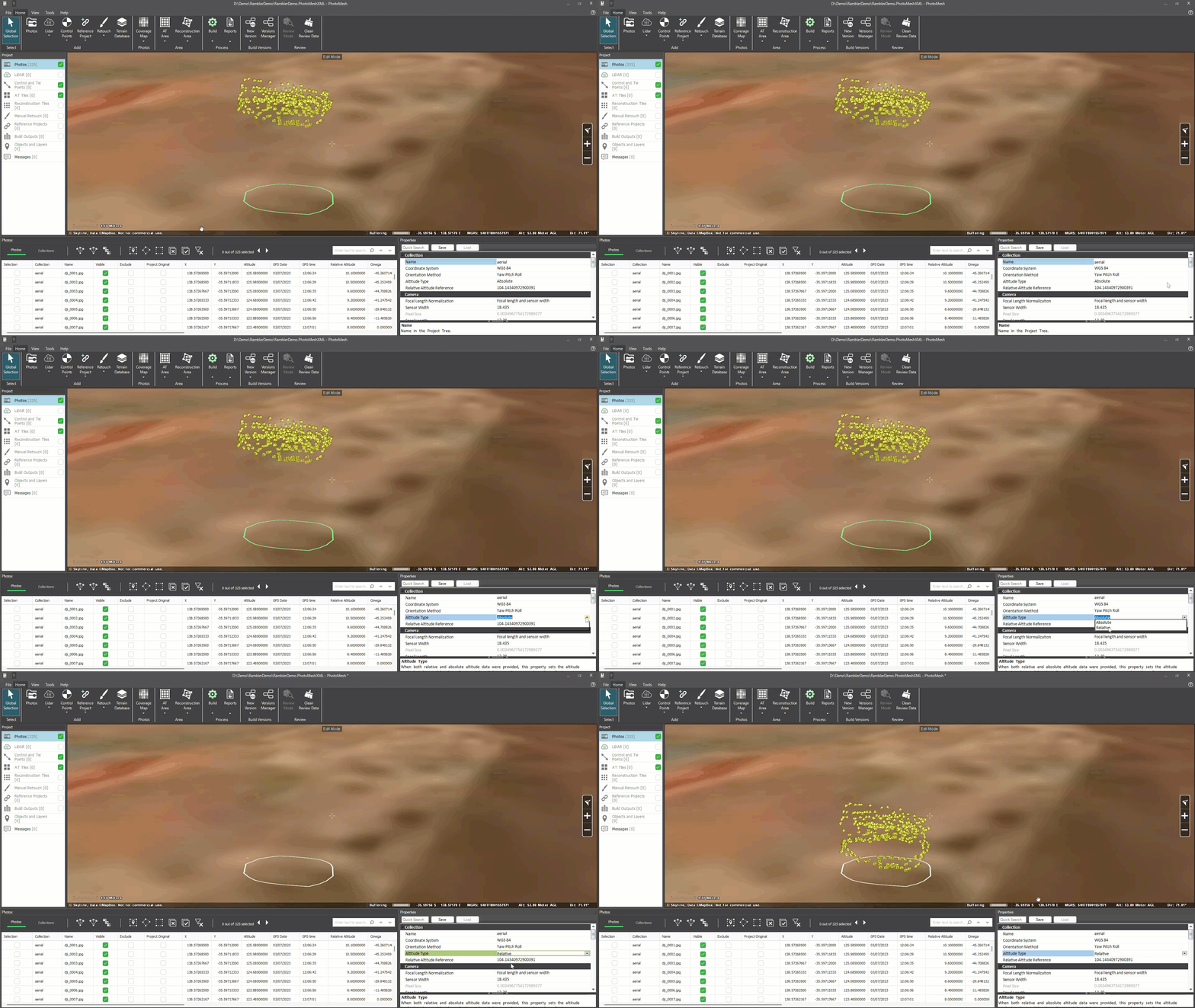
Refer to Step 3: Loading Photos and Other Input Sources and Preparing the Project (skylinesoft.com) in the PhotoMesh user manual.
Set the default Working Folder in the PhotoMesh Options
If network PhotoMesh Fusers are being used, it is best to set a new default working folder location in the PhotoMesh options. This folder should be in a network location that all client computers can access with read/write permissions. However, if you intend to use only local fusers on the master computer, then it is not required to specify a new working folder.
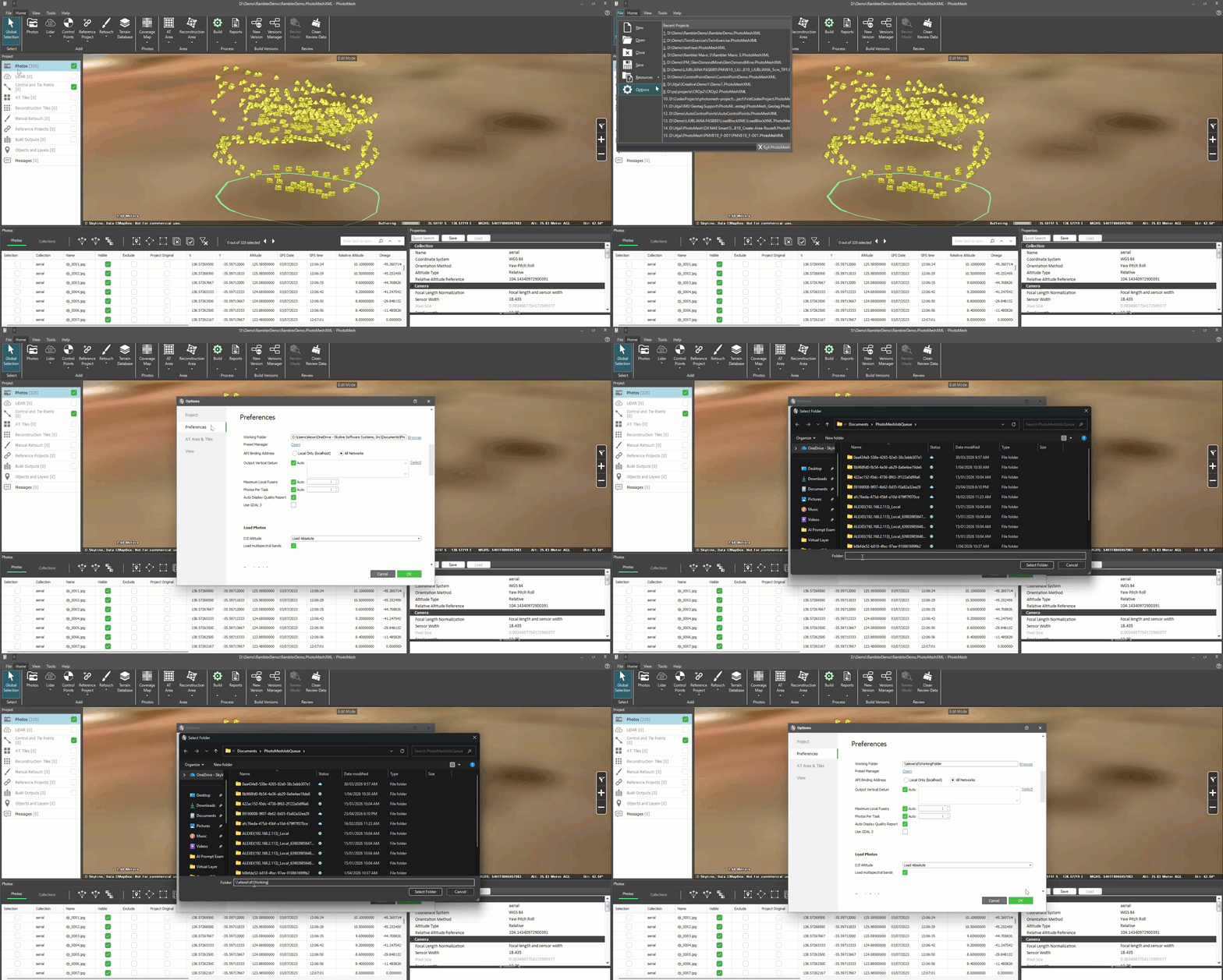
- Create a new folder called WorkingFolder or any other name you choose.
- Create the working folder in directory which can be shared across the network.
- For example, \\MachineName\D\WorkingFolder\.
- Press the F9 shortcut or navigate to the PhotoMesh project options through the file menu.
- In the Project section of the PhotoMesh options, additional metadata can be added to the project.
- Add additional metadata such as a project description and any other relevant project tags.
- In the Preferences section of the PhotoMesh options, set the network path of the working folder. Ensure a UNC path is used in a network environment. If drive mapping is being used, ensure that the drive is mapping letter is the same for each client.
For more information on setting the working folder, refer to Fuser Management (on the Master computer) (skylinesoft.com) from the PhotoMesh user manual.
Setting the Projects Build Parameters
The build process can be started by selecting the build icon, located in the build group within the home tab.
The build icon will open the build parameters window (shown below). The Build Parameters window allows the user to select the Build Settings and other Advanced build settings.
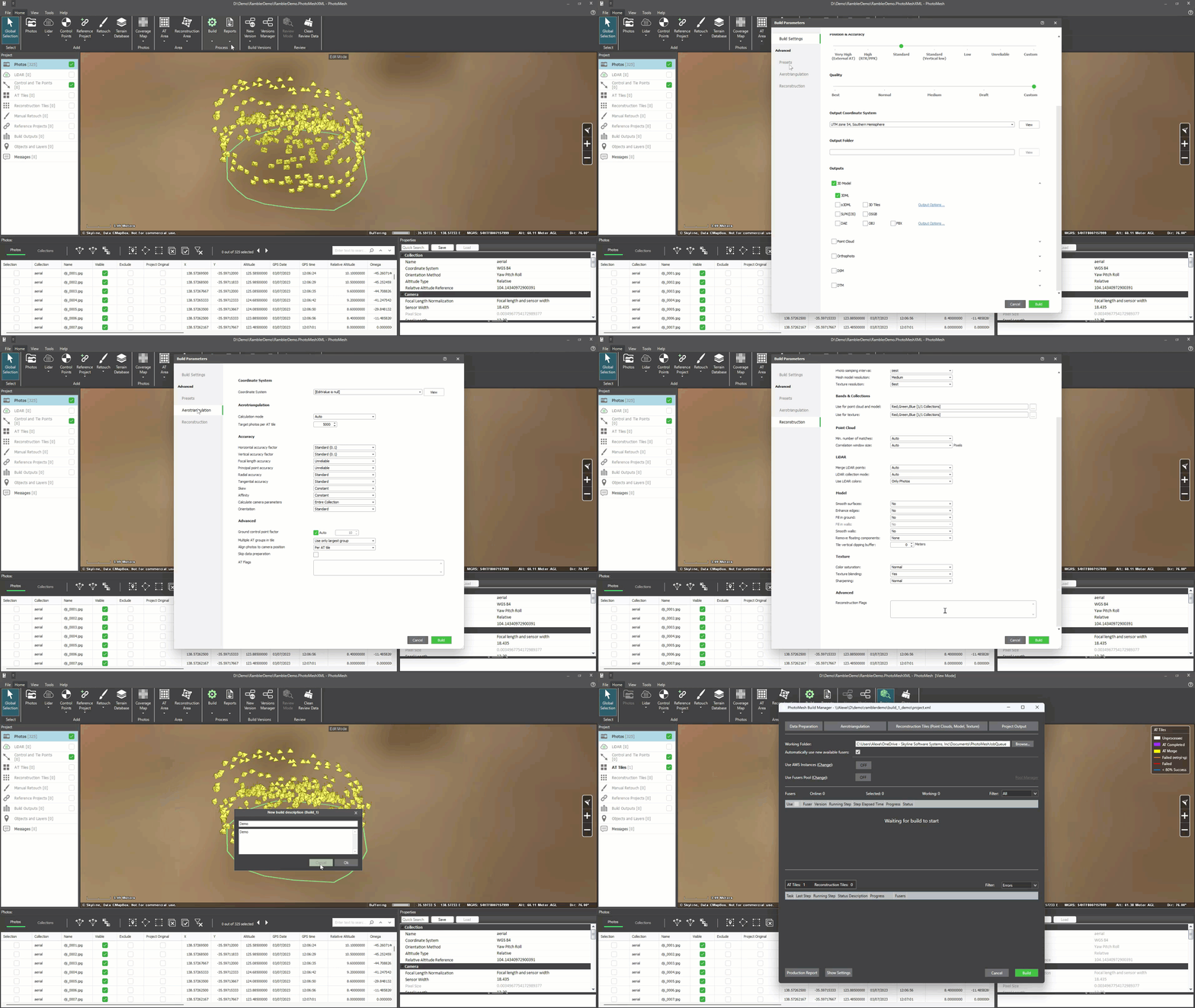
- Select Complete Project in the Steps options and Close Inspection from Collection type options.
- Select the Presets tab from the Advance section. Observe that presets related to a close-range image collection are automatically added build settings.
- For the Advanced Aerotriangulation build settings, use the default settings.
- In the Advanced Reconstruction build settings, copy and paste like line of code into the Advanced Reconstruction Flags box.
-gs 1 @dpc[Clustering_TracksWeight=15] @dpc[clusterMaximalSizeMP=500] @dpc[AB_UseParent=6]- Select Build to launch the build manager.
- Enter the build name and description, then press Ok.
For more information on starting a build, refer to: About Building (skylinesoft.com), in the PhotoMesh user manual.
The Recommended Workflow When Using Small GPUs.
When using a low-end GPU, it is usually more efficient to process the project in two stages, because the optimal number of Fusers for CPU-based tasks may be different from the optimal number for GPU-based tasks.
- Build the dense point cloud first
- Run the build using all available CPU Fusers.
- Set Start from to Auto.
- Set Build until to Point Cloud.
- This allows the CPU-heavy stages to complete as efficiently as possible.
- Run the Gaussian Splatting stage separately
- After all point cloud tasks are complete, restart the build again for Gaussian Splatting.
- Set Start from to Model.
- Set Build until to Auto.
- Use the recommended number of Fusers for the available GPU.
- This avoids overloading a small GPU with too many simultaneous GPU-based tasks.
Reason for this workflow:
CPU-based processing and GPU-based Gaussian Splatting have different hardware requirements. Running too many Fusers during the GPU stage can reduce performance or cause instability, especially when using a low-end GPU.
The Build Manager and Launching PhotoMesh Fusers
The build manager is used for monitoring the current build. The build manager displays status information for the aero-triangulation and reconstruction tiles.
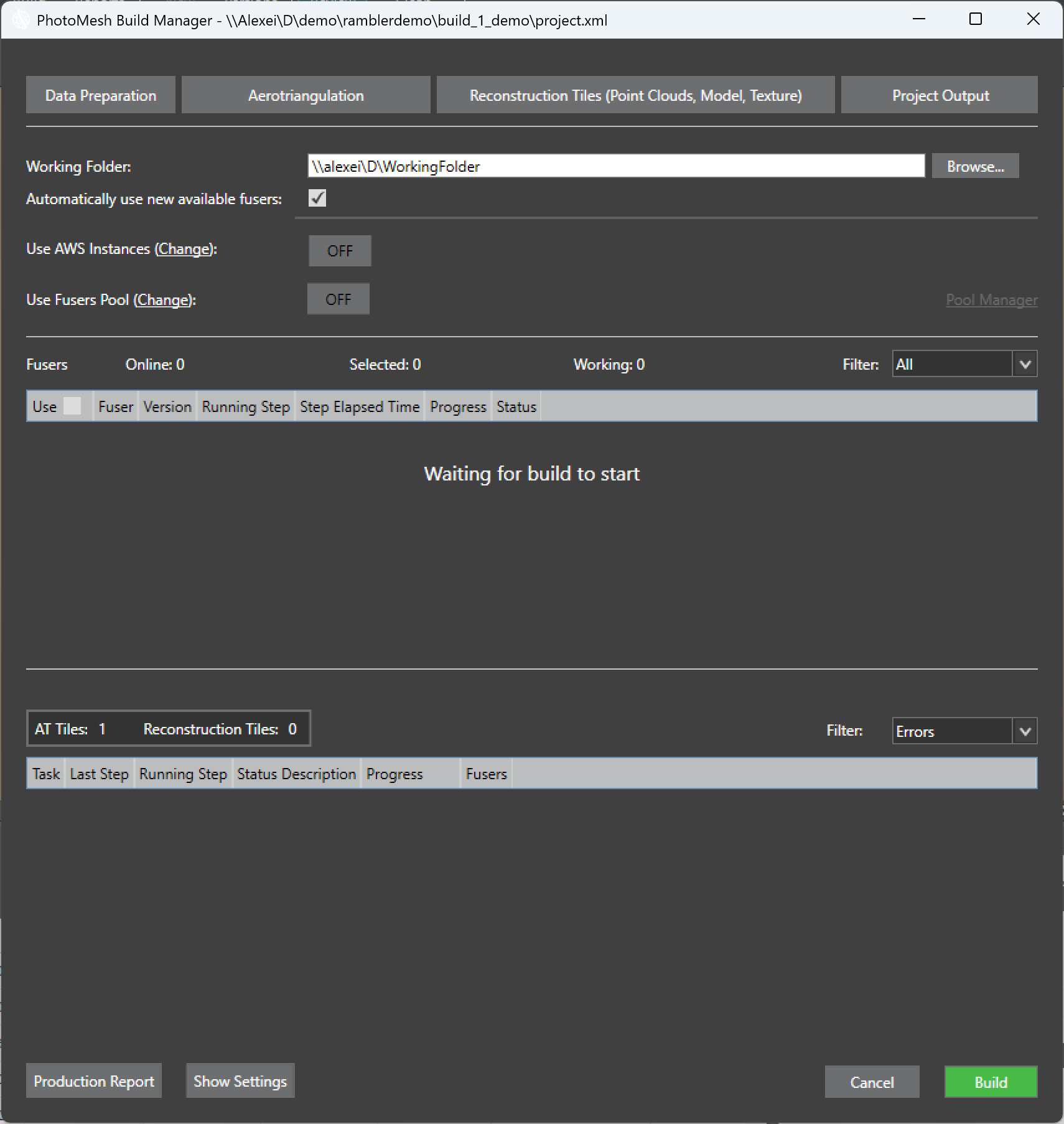
Launching PhotoMesh Fusers from the Build Manager
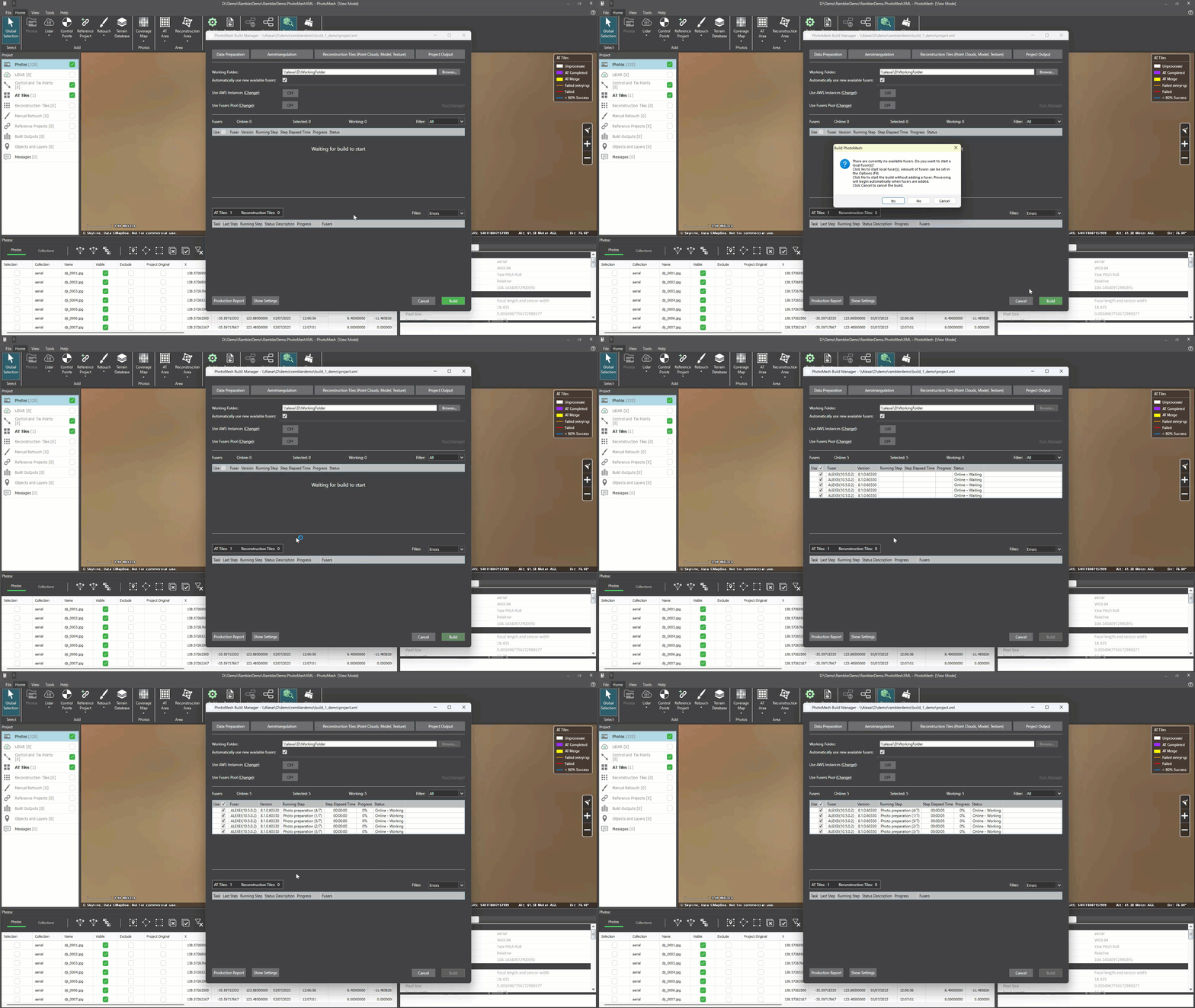
When a build is started and no PhotoMesh Fusers are detected, the build manager will prompt the user: ‘There are currently no available fusers. Do you want to start a local fuser(s)?’ Select yes to automatically launch the local PhotoMesh Fusers.The fusers working folder will be automatically set to working folder set in the build manager or the project options (F9).